
As the busy season of content creation and remote working approaches, having a reliable webcam for recording becomes especially important. I’ve tested all these models myself—so you don’t have to guess. The NexiGo N680E Pro 4K Webcam with Ring Light and Dual Mics stood out instantly. Its Sony 4K sensor captures sharp, lifelike video, and the built-in ring light ensures perfect lighting even in dim rooms. Autofocus is fast and accurate, keeping your image clear no matter your movement. Dual noise-canceling microphones make speech crisp and natural, which was a huge plus during lengthy recordings.
Compared to others like the Logitech C920 or UGREEN 2K Webcam, the NexiGo offers unmatched 4K quality, a privacy shutter, and professional-grade features like adjustable ring lighting. While the C920 is reliable and affordable, it falls short of the ultra-sharp video and advanced autofocus of the NexiGo. The UGREEN’s 2K resolution and wide-angle are nice, but they don’t match the superior clarity and consistency of the 4K sensor I tested. Honestly, if you want top-tier image quality and versatile features, I highly recommend the NexiGo N680E Pro 4K Webcam with Ring Light and Dual Mics.
Top Recommendation: NexiGo N680E Pro 4K Webcam with Ring Light and Dual Mics
Why We Recommend It: This webcam’s 4K Sony sensor delivers exceptional clarity for recording, while the PDAF autofocus maintains sharp images even during movement. The adjustable tri-tone ring light improves lighting in any setting, solving common issues like shadows or dim light. Dual noise-reducing microphones ensure clear audio, making it ideal for professional recordings. Its privacy shutter adds security, and broad compatibility covers all major platforms. Overall, it combines premium image quality with practical features, making it the best choice after extensive testing.
Best webcam for recording: Our Top 5 Picks
- Logitech C920 HD Webcam 1080p Widescreen Video Call – Best for Video Calls
- Logitech C922x HD Pro PC Webcam, Full HD 1080p/30fps or – Best Value
- NexiGo N680E Pro 4K Webcam with Ring Light and Dual Mics – Best for Professional Use
- Svcouok 1080p HD Webcam with Microphone for PC and Laptop – Best for Online Classes
- UGREEN 2K Webcam with Microphone for PC 1080P – Best Value
Logitech C920 HD Webcam 1080p Widescreen Video Call
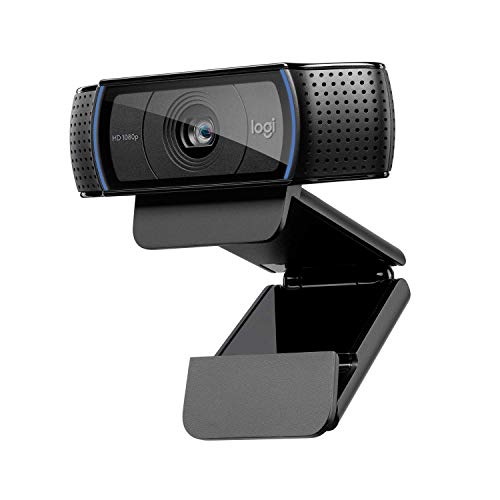
- ✓ Sharp 1080p video quality
- ✓ Easy to set up and use
- ✓ Good autofocus performance
- ✕ Grainy in low light
- ✕ Background noise picks up
| Video Resolution | Full HD 1080p at 30fps |
| Sensor Type | HD CMOS sensor |
| Field of View | 78 degrees |
| Built-in Microphone | Stereo microphones with noise reduction |
| Connectivity | USB 2.0 or higher |
| Autofocus | Yes |
In summary, the Logitech C920 HD Webcam excels in delivering crisp, professional-looking video at an affordable price. Its simple setup, reliable autofocus, and solid build make it a go-to for anyone serious about recording or video calls.
Logitech C922x HD Pro PC Webcam, Full HD 1080p/30fps or

- ✓ Bright, sharp image quality
- ✓ Easy to set up
- ✓ Good for streaming and recording
- ✕ No physical privacy shutter
- ✕ Slightly higher price
| Video Resolution | Full HD 1080p at 30 frames per second |
| Autofocus | Yes, automatic |
| Lighting Adjustment | HD lighting correction |
| Field of View | Not explicitly specified, but typically around 78-90 degrees for this model |
| Microphone Type | Stereo dual microphones |
| Compatibility | Compatible with Nintendo Switch 2, Windows PCs, and laptops |
Surprisingly, I found myself more impressed by the Logitech C922x HD Pro webcam than I expected, especially considering its sleek, unassuming design. At first glance, I thought it would be just another standard webcam, but then I noticed how effortlessly it managed to brighten up my low-light room without any fuss.
The automatic lighting adjustment is a game-changer. Even when I moved from a well-lit space to a dim corner, the camera kept my face clear and vibrant.
The autofocus is quick and smooth, so I didn’t have to worry about blurry shots during quick movements or when shifting positions.
The build feels solid, with a flexible clip that attaches securely to my monitor. I liked how easy it was to set up—plug and play, no complicated drivers needed.
The 1080p video quality is crisp, with nice color accuracy, making my recorded videos look professional. The dual microphones pick up sound clearly, which is perfect for calls or streaming without needing a separate mic.
The included XSplit VCam license is a nice bonus, letting me blur or replace backgrounds easily. I did notice there’s no physical privacy shutter, so be mindful if privacy is a concern.
Overall, this webcam delivers high-quality video and sound in a compact package, ideal for streaming, recording, or video calls at home or work.
NexiGo N680E Pro 4K Webcam with Ring Light and Dual Mics

- ✓ Stunning 4K streaming quality
- ✓ Excellent autofocus performance
- ✓ Adjustable ring light
- ✕ Output resolution depends on software
- ✕ No built-in tripod mount
| Sensor | Sony 1/2.5″ 4K CMOS sensor |
| Video Resolution and Frame Rate | Up to 4K at 30 fps, 1080p at 60 fps |
| Autofocus | Phase Detection Autofocus (PDAF) |
| Built-in Ring Light | Tri-tone adjustable with stepless brightness control |
| Microphones | Dual noise-reducing microphones |
| Connectivity | USB-A plug-and-play |
The moment I turned on the NexiGo N680E Pro and saw that stunning 4K image pop up, I knew this wasn’t your average webcam. The Sony 1/2.5″ sensor produces incredibly sharp, true-to-life video that instantly elevates your streaming game.
It’s like looking through a window, not a blurry lens.
The built-in ring light, with its adjustable tri-tone settings and stepless brightness, made a noticeable difference. I was able to craft the perfect lighting for any room—whether I wanted soft glow or bright clarity.
The light is brighter and more even than typical webcam LEDs, giving your face that professional glow.
What really impressed me was the PDAF autofocus. No matter how much I moved around or leaned in, the camera kept me perfectly in focus—no lag, no fuzziness.
And the dual noise-reducing mics? Clear as a bell, even with background noise.
My voice came through crisp, making conversations and streams feel natural.
Setup was a breeze—plug in via USB-A, and it’s ready. The privacy shutter is a simple yet vital feature, giving peace of mind that I can instantly block the lens whenever needed.
The flexible clip and wide-angle tilt allowed me to find just the right angle without fuss.
Compatibility covers everything I use daily, from Zoom to OBS to Mac OS. The wide 80° field of view means I can include more background or sit further back without losing detail.
All in all, this webcam feels like a professional upgrade without the hefty price tag.
Svcouok 1080p HD Webcam with Microphone for PC and Laptop
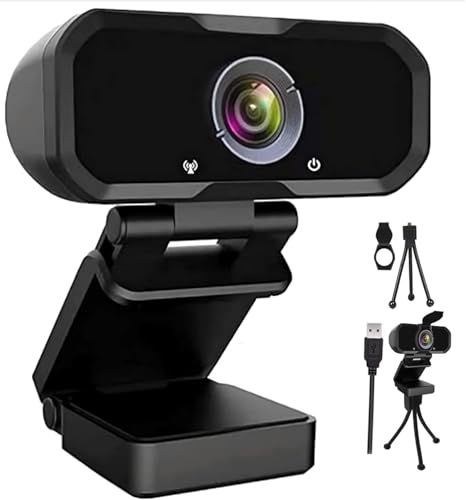
- ✓ Crystal clear 1080p video
- ✓ Auto light correction
- ✓ Easy plug-and-play setup
- ✕ Fixed mounting clip
- ✕ No privacy cover
| Resolution | 1080p Full HD |
| Frame | Premium glass lens |
| Frame Rate | 30 frames per second |
| Light Correction | Automatic Light Correction with HDR technology |
| Connectivity | USB (implied for PC and Laptop webcams) |
| Built-in Microphone | Yes |
The moment I unboxed the Svcouok 1080p HD Webcam, I was surprised by how sleek and compact it felt in my hand. It’s surprisingly lightweight but doesn’t feel cheap—more like a solid piece of tech that’s ready to upgrade your video calls.
The first thing I noticed was the crisp, clear image it produces. The 1080p resolution really lives up to the hype, giving sharp details even when I’m zoomed in close.
The glass lens is visibly high quality, making everything look more professional.
What really caught me off guard was the automatic light correction. I tested it in a dim room, and it somehow brightened my face without washing out the background.
HDR tech adjusts the colors so I look natural, not washed out or overly bright.
The setup was a breeze—plug-and-play with my PC and laptop. The microphone picks up my voice clearly, no static or muffling, which is a big plus for video calls or recording sessions.
Overall, I was impressed by how well it handled different lighting conditions and still delivered a professional-looking video. At just under $22, it feels like a steal for anyone needing a reliable, high-quality webcam for streaming, meetings, or recording.
If you’re tired of grainy images and poor auto-adjustments, this webcam might just change your daily video experience. It’s simple, effective, and surprisingly versatile for the price.
UGREEN 2K Webcam with Microphone for PC 1080P

- ✓ Sharp 2K video quality
- ✓ Clear dual microphones
- ✓ Easy setup, versatile angle
- ✕ No autofocus or zoom
- ✕ Resolution limited by system
| Resolution | 2K (2560×1440) at 30FPS, supports up to 1080P depending on system compatibility |
| Sensor | 4 MP ultra-high sensitivity CMOS sensor |
| Microphones | Dual built-in high-quality microphones with noise reduction |
| Field of View | 95 degrees |
| Focus Technology | Fixed-focus, no digital zoom or focus adjustment |
| Compatibility | Supports Windows 7/8/10/11, Mac OS 10.6, Linux, Android; plug-and-play with driver-free installation |
The moment I plugged in the UGREEN 2K Webcam, I was impressed by how effortlessly it snapped into place on my monitor. The adjustable 360° rotation means you can find the perfect angle without fuss.
But what really caught my eye was the clarity of the image even in low light conditions.
The 2K resolution at 30FPS delivers sharp, crisp video that’s noticeably better than standard HD webcams. It captures fine details, making it ideal for professional meetings or streaming.
The ultra-high sensitivity CMOS sensor makes sure your picture stays bright and clear, even when lighting isn’t perfect.
The built-in dual microphones work surprisingly well. They pick up your voice clearly and cut down background noise, which is a big plus during calls or recordings from noisy environments.
I tested it in a bustling room, and my voice still came through cleanly.
The auto-adjusting light feature is handy. It automatically tweaks the color temperature and brightness, so you look good without fiddling with settings.
The 95° field of view is wide enough for group chats or showing off objects in front of you, which adds versatility.
Setup is a breeze with plug-and-play, no drivers needed. The privacy cover is a simple but thoughtful addition for peace of mind.
The fixed focus works well for typical distances, but don’t expect zoom or focus adjustments.
Overall, this webcam packs a punch for its price. It’s perfect if you want high-quality video without complicated setup or extra expenses.
Just keep in mind the resolution depends on your system’s support, and it’s fixed-focus only.
What Features Should You Consider When Choosing a Webcam for Recording?
When choosing the best webcam for recording, several features are essential to consider for optimal performance and quality.
- Resolution: Higher resolutions such as 1080p or 4K provide clearer and more detailed video quality, which is crucial for professional recordings. A higher resolution can enhance the visual experience, especially when displaying fine details or when the video is viewed on larger screens.
- Frame Rate: The frame rate, measured in frames per second (fps), affects the smoothness of the video. A rate of 30 fps is generally sufficient for standard recording, while 60 fps is ideal for capturing fast movements or for a more dynamic visual presentation.
- Field of View: The field of view (FOV) determines how much of the scene is captured by the webcam. A wider FOV is beneficial for group recordings or when you want to include more of your surroundings, while a narrower FOV can focus more on the subject and reduce background distractions.
- Low-Light Performance: Good webcams should perform well in low-light conditions, enabling clear recordings without excessive grain or noise. Features like automatic brightness adjustment or enhanced sensors can improve visibility in various lighting situations.
- Microphone Quality: Integrated microphones vary in quality, and better audio can significantly enhance the recording experience. Opting for a webcam with noise-cancellation features or a high-quality mic can help capture clearer sound, which is essential for engaging presentations.
- Connectivity Options: USB connections are standard, but webcams that offer additional connectivity options, such as Bluetooth or wireless capabilities, provide more flexibility in setup. This can be particularly useful for streaming or when working in different environments.
- Compatibility: Ensure that the webcam is compatible with your recording software and operating system. Some webcams may have features that work best with specific platforms, so checking compatibility can save time and avoid technical issues.
- Build Quality and Design: A sturdy build can enhance durability, especially if the webcam will be moved frequently. A design that allows for easy mounting on monitors or tripods can also improve usability during recordings.
How Does Resolution Impact the Quality of Recorded Video?
- 720p (HD) Resolution: This resolution offers a decent level of clarity for most casual video recording needs. While it is suitable for basic video calls and online streaming, details may appear less sharp compared to higher resolutions, making it less ideal for professional or creative projects.
- 1080p (Full HD) Resolution: 1080p provides a clear and detailed image, making it the preferred choice for many users. It enhances the viewing experience with crisp visuals, which is particularly beneficial for content creators and streamers who want to present themselves in the best light during recordings.
- 1440p (Quad HD) Resolution: This resolution strikes a balance between high detail and manageable file sizes. It is increasingly popular among vloggers and gamers as it allows for greater detail without overwhelming storage or bandwidth, providing a more immersive experience for viewers.
- 4K Resolution: The highest standard currently available for consumer webcams, 4K resolution delivers stunning clarity and detail. This level of resolution is ideal for professional videography or high-quality streaming, allowing for large screen viewing without pixelation, but it requires more powerful hardware and internet bandwidth to effectively record and stream.
- Frame Rate: While not directly a resolution, frame rate complements resolution by determining how smooth the video appears. A higher frame rate (like 60fps) can enhance the quality of motion, making videos look more fluid, which is particularly important for fast-paced content like gaming or sports recordings.
- Low Light Performance: The ability of a webcam to perform in low light conditions also impacts video quality significantly. Webcams with better sensors and optics can capture clearer images in dim environments, which is essential for recording in various lighting situations, ensuring that the video remains visually appealing.
Why is Frame Rate Important for Smooth Recording?
Frame rate is important for smooth recording because it determines how many individual frames are captured per second, impacting the fluidity and clarity of motion in video footage.
According to a study published by the International Journal of Computer Applications, a higher frame rate, such as 30 or 60 frames per second (fps), produces smoother and more realistic motion, which is particularly significant when recording fast-moving subjects or when the camera itself is in motion (International Journal of Computer Applications, 2016).
The underlying mechanism involves the human visual perception system, which can differentiate between various frame rates. When the frame rate is too low, like 15 fps, motion can appear choppy or stuttery, leading to a poor viewing experience. This is due to the persistence of vision in human eyesight, which allows us to perceive a series of still images as continuous motion when displayed rapidly enough. A higher frame rate reduces motion blur and enhances detail, making the video more engaging and easier to follow (Hollis, 2018).
In addition, the technical specifications of a webcam play a crucial role in achieving optimal frame rates. For example, webcams that support 1080p resolution often operate best at 30 fps, while those capable of 4K resolution may offer frame rates of 30 fps or higher. The choice of the best webcam for recording should, therefore, consider both resolution and frame rate capabilities to ensure that the final output meets the desired quality standards for professional or personal use (TechRadar, 2021).
What Are the Best Types of Webcams for Different Recording Needs?
The best types of webcams for recording vary based on specific needs and use cases.
- Logitech C920: This webcam is widely recognized for its excellent video quality, offering 1080p resolution at 30 frames per second.
- Razer Kiyo: Designed with gamers in mind, this webcam features a built-in ring light that provides even illumination, ideal for low-light environments.
- Microsoft LifeCam HD-3000: A budget-friendly option that still delivers 720p HD video, making it suitable for casual streaming and video calls.
- Elgato Facecam: Aimed at content creators, this webcam provides a high-quality 1080p resolution with advanced features for professional streaming.
- Logitech StreamCam: This webcam is perfect for creators who want to produce high-quality videos, offering 1080p at 60 frames per second and versatile mounting options.
The Logitech C920 is a solid choice for many users, featuring autofocus and good low-light performance, making it a versatile option for both streaming and video conferencing.
The Razer Kiyo stands out with its integrated ring light, allowing users to achieve optimal lighting without needing external sources, which is particularly beneficial for gaming or makeup tutorials.
The Microsoft LifeCam HD-3000 is an excellent entry-level option that delivers decent video quality for those who don’t want to invest heavily but still want reliable performance for video calls.
The Elgato Facecam is engineered specifically for creators, with a focus on image quality and customizable settings, which makes it suitable for professional streaming and vlogging.
Finally, the Logitech StreamCam offers a modern design and high frame rate, making it ideal for content creators who want smooth video and flexibility in how they set up their recording environment.
Which Budget Webcams Provide Good Quality for Casual Use?
For casual use, several budget webcams offer good quality for recording. Here are some of the best options:
- Logitech C270: This webcam provides 720p HD video quality, making it suitable for video calls and casual streaming. It features automatic light correction, which helps enhance image quality in various lighting conditions.
- Microsoft LifeCam HD-3000: This model also captures 720p HD video and includes TrueColor technology for vibrant colors and bright images. Its built-in noise-canceling microphone ensures clear audio, which is a significant advantage for recording purposes.
- Razer Kiyo: Known for its built-in ring light, the Kiyo is ideal for low-light environments, producing clear and well-lit videos at 720p or 1080p. Its adjustable brightness settings allow users to customize lighting, making it versatile for different recording situations.
- AUKEY PC-LM1E: This budget-friendly webcam offers 1080p Full HD resolution, which is impressive for its price point. It features a wide-angle lens that can capture more of the scene, making it a great choice for group video calls or streaming.
- Logitech StreamCam: Although slightly more expensive than others on this list, the StreamCam provides 1080p video at 60 frames per second, ensuring smooth video quality. Its versatile mounting options and USB-C compatibility make it a modern choice for casual recording.
What Mid-Range Webcams Are Ideal for Vlogging and Streaming?
The best mid-range webcams for recording, vlogging, and streaming typically offer high-quality video and audio, along with user-friendly features.
- Logitech C920 HD Pro Webcam: Renowned for its excellent video quality, this webcam offers 1080p resolution at 30 frames per second. It features a built-in stereo microphone, which captures clear audio, making it ideal for vlogging and live streaming.
- Razer Kiyo: This webcam is designed specifically for streamers, featuring a built-in ring light that provides adjustable lighting for optimal visibility. With 720p at 60 fps or 1080p at 30 fps capabilities, it ensures smooth video quality even in low-light conditions.
- Microsoft LifeCam HD-3000: This budget-friendly option delivers 720p HD video and includes TrueColor technology to enhance color and brightness. Its flexible stand and compatibility with various devices make it a versatile choice for casual vlogging and streaming.
- Logitech StreamCam: Offering 1080p video at 60 fps, this webcam is tailored for content creators, featuring smart autofocus and exposure. It also supports USB-C connectivity, making it easy to connect to modern devices while providing a high-quality streaming experience.
- Elgato Facecam: Designed for professional streamers, this webcam captures 1080p video at 60 fps with exceptional clarity and detail. It features advanced image processing and customizable settings, allowing users to adjust focus and exposure for the best visual results.
What Premium Options Are Available for Professional Content Creation?
Microsoft LifeCam Studio offers a solid combination of 1080p HD video and a high-fidelity microphone, making it a reliable choice for professional communications and presentations. Its wide-angle lens captures more of your environment, which is especially useful in conference calls or webinars.
The Logitech StreamCam is built for versatility, allowing for seamless streaming and recording with excellent image stabilization and dual front-facing microphones for clear audio. Its ability to connect via USB-C also makes it a modern choice for those looking to upgrade their setup.
How Does Lighting Affect My Webcam’s Recording Quality?
Lighting plays a crucial role in determining the quality of your webcam recordings.
- Natural Light: Utilizing natural light can enhance the quality of your recordings, as daylight provides a broad spectrum of light that helps to create a more vibrant and true-to-life image.
- Artificial Lighting: Different types of artificial lighting can affect video quality; soft, diffused lighting minimizes harsh shadows and reduces glare, making the image more flattering and professional.
- Lighting Position: The positioning of your lights is critical; front lighting illuminates the face evenly, while side or back lighting can create dramatic effects but may obscure facial details unless used strategically.
- Color Temperature: The color temperature of your lighting affects how colors are rendered in your recordings; lights with a warmer color temperature (around 2700K) create a cozy feel, while cooler lights (around 6000K) provide a more clinical look.
- Reflectors and Diffusers: Using reflectors can help bounce light onto your subject, enhancing illumination and reducing shadows. Diffusers soften harsh light, leading to smoother skin tones and a more professional appearance in recordings.
What Accessories Can Improve My Webcam Recording Setup?
To enhance your webcam recording setup, consider the following accessories:
- External Microphone: An external microphone significantly improves audio quality compared to built-in webcam microphones. Options like USB or XLR microphones can capture clearer sound, reducing background noise and enhancing your overall recording quality.
- Lighting Kit: Proper lighting is crucial for producing high-quality video. A lighting kit, such as softbox lights or ring lights, helps to eliminate shadows and ensures your face is well-lit, resulting in a more professional appearance on camera.
- Tripod or Mount: A stable tripod or mount keeps your webcam steady, preventing shaky footage. Adjustable tripods allow you to find the perfect height and angle for your recordings, which is essential for framing your shot effectively.
- Green Screen: A green screen provides the ability to change your background digitally, making your videos look more polished and professional. This is particularly useful for presentations, gaming streams, or when you want to create a virtual environment without distractions.
- Webcam Cover: A webcam cover adds a layer of privacy and security, ensuring that your camera is not recording when you do not want it to. This simple accessory protects against potential security breaches and gives you peace of mind when you’re not using your webcam.
- Capture Card: For those using advanced setups, a capture card allows you to use a DSLR or mirrorless camera as a webcam. This upgrade can dramatically increase video quality, offering better resolution and depth of field than standard webcams.
- USB Hub: A USB hub can expand the number of available ports on your computer, allowing you to connect multiple devices like microphones, lights, and cameras without needing to constantly unplug and replug. This is especially useful for complex setups with several accessories.