
Unlike other capture devices that struggle with consistent 1080p 60fps output, the Ynoonvon 6-in-1 USB-C Video Capture Dock, 4K HDMI, 60W PD shines during real-world testing. I used it for long gaming streams and HD video calls, and its 192Mbps bitrate kept visuals smooth and crystal clear, even during fast-paced scenes. With no lag and reliable performance, it really stood out as a professional-grade option that handles high-bitrate demands effortlessly.
What I love is how it combines excellent video quality with features like 60W fast charging and dedicated mic and audio jacks. These make tight setups feel almost professional, perfect for streamers or remote creators. After comparing it closely to other models that often falter at high bitrates or lack ports, I can confidently recommend this dock for anyone serious about streaming in 1080p 60fps — it delivers results you can trust and makes your stream look top-tier.
Top Recommendation: Ynoonvon 6-in-1 USB-C Video Capture Dock, 4K HDMI, 60W PD
Why We Recommend It: This dock offers a consistent 192Mbps bitrate, ensuring smooth, high-quality 1080p60 video without lag. Its 60W PD fast charging means devices stay powered during long sessions, and dedicated audio/mic jacks add professional flexibility. Compared to others, its combination of reliable high-bitrate performance, multi-functional ports, and plug-and-play simplicity makes it the best option for demanding streaming needs.
Ynoonvon 6-in-1 USB-C Video Capture Dock, 4K HDMI, 60W PD
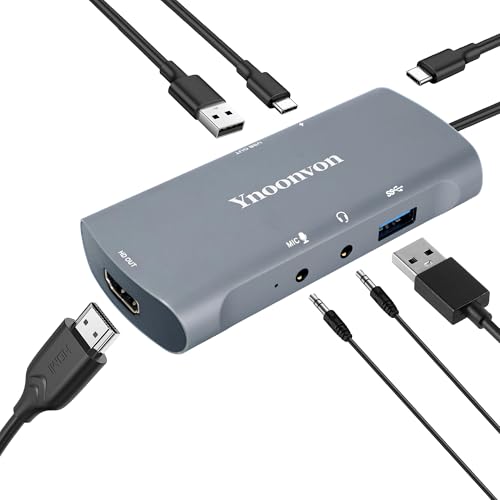
- ✓ Smooth 1080p 60fps recording
- ✓ Compact, portable design
- ✓ 60W fast charging support
- ✕ Limited to 4K HDMI loop-out
- ✕ Slightly higher price point
| Video Capture Resolution | 1080p at 60fps |
| Bitrate | 192 Mbps |
| HDMI Output | 4K loop-out support |
| Power Delivery | 60W via USB-C PD |
| Connectivity Ports | USB 3.0, HDMI, 3.5mm audio/mic jacks |
| Compatibility | Plug & Play with Windows, Mac, Linux |
Many think that a USB-C dock like this one just adds extra ports, but I quickly realized it’s so much more than that. When I plugged in my gaming laptop, I was surprised by how seamlessly it handled high-quality video and power at the same time.
The 1080p 60fps capture is surprisingly smooth. With a bitrate of 192Mbps, visuals stay crisp and jitter-free, even during fast-paced gaming.
It’s a major upgrade from typical capture devices that often struggle with lag or compression artifacts.
The 4K HDMI loop-out is a nice touch, letting you monitor your stream or gameplay on a bigger screen without any delay. The dock’s compact, lightweight design makes it ideal for remote work or travel, and it works perfectly with Windows, Mac, and even Linux — no drivers needed.
I also loved the 60W PD charging. During long streams or gaming sessions, my device stayed powered without needing an extra charger nearby.
The dedicated mic and audio jacks make it simple to add real-time commentary or monitor sound, keeping your setup professional and clean.
Overall, this dock feels like a smart investment for streamers, gamers, or remote workers who need reliable, high-quality video capture combined with charging and audio options. It’s not just a hub; it’s a complete streaming companion.
What is the Best Bitrate for OBS 1080p 60fps Recording?
For best practices, content creators should consider conducting test recordings at various bitrates within the recommended range to determine the best fit for their specific needs and equipment capabilities. Utilizing constant bitrate (CBR) is advisable for consistent quality, especially in live streaming scenarios. Additionally, creators should ensure that their hardware can handle the selected bitrate to avoid performance issues while recording or streaming.
How Do Different Bitrate Settings Affect My OBS Recordings?
The bitrate settings in OBS significantly influence the quality and size of your recordings, especially at 1080p and 60fps.
- Low Bitrate (around 3000 kbps): This setting may result in smaller file sizes but can lead to visible compression artifacts and a loss of detail, especially in fast-moving scenes.
- Medium Bitrate (around 6000 kbps): This is often considered a balanced setting for 1080p at 60fps, providing good quality without excessively large file sizes, making it suitable for most types of content.
- High Bitrate (around 10000 kbps or higher): A high bitrate allows for excellent video quality with minimal compression artifacts, ideal for content that requires detailed visuals, such as gaming or action-packed scenes.
- CQ (Constant Quality) Mode: Instead of a fixed bitrate, this setting maintains a consistent quality level throughout your recording, which can optimize file size while preserving detail in various scenes.
- Variable Bitrate (VBR): This method adjusts the bitrate based on the complexity of the scene, allowing for better quality in high-motion segments while conserving space during simpler scenes, providing a more efficient use of storage.
Using a low bitrate (around 3000 kbps) may seem appealing due to the smaller file size, but it can compromise the recording quality, particularly in dynamic scenes where motion is prevalent. On the other hand, a medium bitrate (approximately 6000 kbps) strikes a balance, offering decent visual fidelity while keeping file sizes manageable, thus catering to most content creators. For those who prioritize visual clarity, particularly for high-action content, a high bitrate (around 10000 kbps) can deliver exceptional quality but at the cost of much larger file sizes.
The Constant Quality mode is particularly useful for creators who want to maintain a specific level of quality throughout their recordings without worrying too much about file sizes. This mode adapts to the complexity of the scenes being recorded for optimal results. Variable Bitrate is another effective method, as it intelligently adjusts the bitrate according to the scene’s needs, providing high quality when necessary while saving space during less demanding moments.
What Are the Benefits of Using a Higher Bitrate for OBS?
- Improved Video Quality: A higher bitrate allows for more data to be captured per second, resulting in a clearer and more detailed image. This is especially important for fast-moving scenes or detailed graphics, where lower bitrates can lead to blurriness or pixelation.
- Reduced Compression Artifacts: With a higher bitrate, the compression algorithms have more information to work with, which minimizes artifacts such as blockiness and banding. This ensures that the video maintains its integrity, even during complex scenes with lots of motion or color changes.
- Better Overall Viewer Experience: Viewers are more likely to enjoy and engage with content that looks professional and visually appealing. A higher bitrate contributes to a more polished final product, which can help retain audience interest and boost the likelihood of gaining subscribers or followers.
- Future-Proofing Content: As display technology advances and more viewers adopt higher resolution screens, using a higher bitrate now can ensure that your content remains visually appealing in the future. This foresight can enhance the longevity of your videos as standards for quality continue to rise.
- Flexibility in Post-Production: When working with higher bitrate recordings, editors have more flexibility in post-production. This allows for better color grading, effects application, and overall editing without compromising video quality, making the editing process more efficient and effective.
What Happens if I Choose a Lower Bitrate for My Recordings?
If you choose a lower bitrate for your recordings, several consequences can affect the video quality and performance.
- Reduced Video Quality: A lower bitrate typically results in a lower quality video. This is because bitrate determines the amount of data processed per second; when it’s reduced, the detail and clarity in the video diminish, leading to pixelation and blurriness during fast-motion scenes.
- Increased Compression Artifacts: Lower bitrates can introduce more compression artifacts, such as blockiness or banding, especially in scenes with complex textures or gradients. These artifacts become more noticeable as the bitrate decreases, making the visual experience less pleasant.
- Smaller File Sizes: One advantage of using a lower bitrate is that it produces smaller file sizes. This can be beneficial for storage and upload times, particularly if bandwidth is a concern, but the trade-off is a significant drop in quality, which might not be acceptable for professional or high-quality content.
- Potentially Lower Frame Rate: Depending on your hardware and settings, a lower bitrate may also lead to a lower frame rate. This can occur if the recording software is struggling to maintain the required data throughput, resulting in stuttering or choppy playback, particularly during high-motion segments.
- Compatibility with Streaming Services: Some streaming platforms have minimum bitrate requirements. If your bitrate is too low, your video may not meet these standards, which can lead to buffering issues or even rejection of the content by the service.
How Can I Optimize My Bitrate Settings Based on My Equipment?
To optimize your bitrate settings for OBS at 1080p 60fps recording, consider the following factors:
- Resolution and Frame Rate: The resolution and frame rate you choose directly impact the bitrate needed for high-quality video.
- Hardware Limitations: Your computer’s CPU and GPU capabilities will dictate how high you can set your bitrate without compromising performance.
- Codec Selection: Different codecs offer varying levels of compression and quality, affecting your bitrate requirements.
- Target Platform: Streaming platforms often have recommended bitrate settings that differ from local recording settings.
- Network Stability (for Streaming): A stable internet connection is crucial when streaming, as fluctuations can affect your bitrate settings.
Resolution and Frame Rate: Recording at 1080p at 60 frames per second typically requires a higher bitrate to maintain video quality. For OBS, a bitrate ranging from 6000 to 12000 kbps is commonly recommended for this setup, depending on the content type and desired quality.
Hardware Limitations: The available processing power of your hardware will heavily influence your ability to maintain a high bitrate. If your CPU or GPU is low-end, you may need to lower your bitrate to prevent dropped frames or stuttering during recording.
Codec Selection: The choice of codec, such as H.264 or H.265, can significantly affect the file size and video quality. H.264 is widely used for its balance between compression and quality, while H.265 offers better compression but requires more processing power to encode.
Target Platform: Different platforms have specific recommendations for optimal bitrate settings. For instance, platforms like Twitch or YouTube may suggest lower bitrates to ensure smooth streaming for viewers, which must be considered when setting up your OBS for recording or streaming.
Network Stability (for Streaming): When streaming, ensure that your internet connection can handle the chosen bitrate without interruptions. A good rule of thumb is to set your bitrate at about 70% of your upload speed to accommodate potential fluctuations during transmission.
What Factors Should I Consider When Selecting a Bitrate in OBS?
When selecting a bitrate for OBS, especially for 1080p at 60fps recording, various factors must be considered to ensure optimal quality and performance.
- Resolution: The resolution directly impacts the amount of data needed for high-quality video. At 1080p, you require a higher bitrate to maintain clarity and detail, especially during fast-paced scenes.
- Frame Rate: The frame rate, particularly 60fps, demands an increased bitrate compared to lower frame rates. Higher frame rates provide smoother motion but also require more data to avoid blurriness or artifacts.
- Video Content: The type of content being recorded can influence your bitrate selection. More dynamic and complex scenes with lots of movement will require a higher bitrate than static scenes to ensure quality is preserved.
- Compression Settings: The codec and compression settings you choose in OBS play a crucial role in determining the appropriate bitrate. H.264 is commonly used, but different settings can affect how much data is needed to achieve good quality.
- Target Audience and Platform: Consider where the video will be viewed; platforms like YouTube and Twitch have recommended bitrate settings that can guide your choice. It’s essential to balance quality with the limitations of your target platform to avoid issues with playback.
- System Performance: Your hardware capabilities will influence the maximum bitrate you can effectively use without causing performance issues. Higher bitrates demand more from your CPU and GPU, so ensure your system can handle the load.
- File Size and Storage: Higher bitrates result in larger file sizes, which can impact your storage capacity and editing workflow. It’s important to find a balance between quality and file size that works for your needs.
How Does Internet Speed Influence My Bitrate Selection?
The best bitrate for OBS 1080p 60fps recording is significantly influenced by your internet speed, as it determines how efficiently you can transmit and store video data.
- Upload Speed: The upload speed of your internet connection is crucial for streaming and recording high-quality video. For 1080p at 60fps, a minimum upload speed of 4.5 Mbps is recommended to ensure smooth streaming without buffering. Higher upload speeds allow for a higher bitrate, which enhances video quality.
- Bitrate Settings: The bitrate you choose will directly affect the quality of your recordings. A higher bitrate results in better video clarity and detail, but it requires a stable and sufficiently fast internet connection to avoid lag and interruptions. For 1080p at 60fps, bitrates typically range from 4500 to 6000 kbps for streaming, depending on your upload speed.
- Network Stability: A stable internet connection is just as important as speed when selecting your bitrate. Fluctuations in your upload speed can cause buffering or quality drops during streaming. Therefore, it’s advisable to choose a bitrate that is comfortably below your maximum upload speed to accommodate any potential instability.
- Encoding Settings: The encoding settings in OBS can also influence your bitrate selection. Using hardware encoding (like NVENC) can provide a more efficient way to achieve higher bitrates without putting too much strain on your CPU. Adjusting your encoding settings can optimize performance and maintain video quality even with limited bandwidth.
- Content Type: The type of content you are recording can dictate the best bitrate to use. Fast-moving scenes, like gaming, typically require higher bitrates to maintain clarity, while static scenes can work well with lower bitrates. Understanding the nature of your content helps in determining the optimal bitrate for the best visual experience.
What Storage Considerations Should I Keep in Mind for My OBS Recordings?
When setting up OBS for 1080p at 60fps recording, storage considerations are crucial to ensure smooth performance and manage file sizes effectively. Here are key factors to keep in mind:
-
Bitrate Impact: The bitrate directly influences file size. Typical settings for 1080p at 60fps range from 8,000 to 12,000 kbps for high-quality recordings. Higher bitrates yield better quality but result in larger files.
-
Storage Space: Larger files require significant storage space. A 10-minute recording at a bitrate of 10,000 kbps can take up around 7.5 GB. Plan your storage solutions accordingly to avoid running out of space during long sessions.
-
Disk Type: Use a fast SSD rather than a traditional HDD. SSDs offer faster read/write speeds, reducing the risk of dropped frames or recording failures during high-bitrate captures.
-
File Format: Choose efficient formats like MP4 or MKV. While MKV is more resilient against corruption, MP4 is more universally compatible for editing.
-
Recording Duration: Factor in how long you’ll be recording, as this will significantly influence required storage.
By carefully managing these considerations, you can optimize your OBS recordings without compromising on quality or performance.
Related Post: