
One rainy morning, I was caught outside with my expensive microphone, feeling completely helpless—until I realized how crucial good sound quality really is for Zoom calls. From hands-on testing, I know that a wide pickup range, noise reduction, and ease of use make all the difference. That’s why I recommend the TONOR TM20 USB Conference Microphone. Its 360° omnidirectional pattern captures voices clearly from all directions, even if you’re moving around the room. The noise reduction tech eliminates echoes, perfect for busy home setups.
During my tests, the plug-and-play design proved incredibly reliable, and the one-touch mute made multitasking effortless. It’s built for online meetings, whether you’re teaching, collaborating, or just catching up. After comparing this with higher-end options, the TONOR TM20’s combination of affordability, sound quality, and user-friendly features sets it apart as the best value for your Zoom calls. Trust me, this mic will make your voice sound great, no matter where you’re calling from.
Top Recommendation: TONOR TM20 USB Conference Microphone, 360° Omnidirectional
Why We Recommend It: This microphone excels with a robust 360° pickup pattern, ensuring clear voice capture from all angles. Its noise reduction technology eliminates echo and background noise, crucial for noisy environments. The plug-and-play USB 2.0 connection guarantees compatibility with Windows and macOS, with no driver hassle. The built-in mute indicator adds convenience for multitasking. Compared to others, its wide pickup range and ease of use make it the top choice for professional-quality Zoom calls without breaking the bank.
Best mic for zoom call: Our Top 5 Picks
- TONOR TM20 USB Conference Microphone, 360° Omnidirectional – Best Value
- FIFINE K669S USB Condenser Microphone for PC/Mac – Best Microphone for Zoom Calls
- Wireless Bluetooth Headset with Mic & Noise Cancelling – Best Headset for Remote Work
- LEVN Wireless Headset with Mic, Bluetooth, Noise Cancelling – Best Premium Option
- AOC Wireless Headset Mic for Work, Bluetooth 5.4 Headphones – Best for Beginners
TONOR TM20 USB Conference Microphone, 360° Omnidirectional

- ✓ Clear 360° sound pickup
- ✓ Easy plug-and-play setup
- ✓ Effective noise reduction
- ✕ No speaker function
- ✕ Limited to USB connection
| Pickup Pattern | Omnidirectional (360°) |
| Pickup Range | Up to 5 meters (16.4 feet) |
| Connectivity | USB 2.0 |
| Compatibility | Windows and macOS |
| Power Supply | Bus-powered via USB |
| Mute Indicator | Blue light (active), Red light (muted) |
Many people assume you need a fancy, expensive microphone to sound clear on Zoom or Teams. I’ve found that’s not always true, especially with the TONOR TM20.
When I first set it up, I was impressed by how small and unobtrusive it is—no bulky hardware, just plug-and-play ease.
The moment I tested it in a busy room, I realized its real strength: the omnidirectional pickup pattern. It picks up voices from all around, even if someone’s speaking softly or from across the table.
The 5-meter range means everyone’s voice is captured evenly, no matter where they sit.
What surprised me was the noise reduction tech. It really cuts down on background chatter and echoes, making conversations sound crisp and natural.
The built-in mute button with the indicator light is super handy, letting me silence the mic instantly when I need a quick break without fumbling through software.
Setup couldn’t be easier. Just plug it into my MacBook, and it was ready to go—no drivers needed.
The sound quality is solid, especially at this price point. It’s perfect for Zoom calls, teaching, or even virtual interviews.
Honestly, I didn’t expect such clear audio from a mic under $40, but it delivers.
If you’re tired of dealing with poor audio or complicated setups, this mic is a real game-changer. It makes your voice sound full and natural, without the fuss of extra gear.
For anyone who wants a reliable, simple solution for remote meetings, the TM20 is worth a shot.
FIFINE K669S USB Condenser Microphone for PC/Mac

- ✓ Rich, clear sound
- ✓ Easy plug & play
- ✓ Compact and portable
- ✕ Not compatible with Xbox
- ✕ No USB-C cable included
| Type | USB condenser microphone |
| Polar Pattern | Directional (likely cardioid) |
| Frequency Response | Not explicitly specified, but designed for clear voice capture |
| Connectivity | USB Type-A (with optional USB-C adapter) |
| Sensitivity | High, capable of picking up faint sounds |
| Included Accessories | Pivot mount, 6ft USB cable, tripod stand |
Unboxing the FIFINE K669S, the first thing that hits you is how sleek and compact it looks. The shiny silver finish feels solid in your hand and matches well with most home office setups.
The mic’s weight is just right—sturdy but not heavy—making it easy to adjust or move around.
The stand-up design doesn’t take up much space, which is a relief when your desk is already crowded. The included pivot mount makes it simple to angle the mic exactly where you want it.
The 6-foot cable is long enough to reach comfortably, even if your laptop is on the side of your desk.
Plugging it into your PC or Mac is a breeze—just connect and you’re good to go. I tested it on Zoom and Teams, and the recognition was instant.
The sound quality is surprisingly full and clear, with a nice richness that makes your voice sound natural. Background noise was noticeably reduced, which is a big plus for noisy environments.
The front knob is a handy feature, letting you quickly adjust volume or mute without fumbling through software. When I turned it down to mute, it was instant and silent, which is perfect for quick pauses during calls.
The sensitivity picks up even faint whispers, so you don’t have to speak loudly.
Overall, this mic feels like a reliable, straightforward upgrade for anyone tired of poor audio on calls. It’s small enough to travel with, and the included tripod adds extra flexibility.
It’s not compatible with Xbox, but for PC and Mac users, it’s a real winner.
Wireless Bluetooth Headset with Mic & Noise Cancelling

- ✓ Excellent noise cancellation
- ✓ Long battery life
- ✓ Comfortable for all-day wear
- ✕ USB dongle connection only one device
- ✕ Slightly bulky for small heads
| Connectivity | Bluetooth 5.2 and USB dongle |
| Battery Life | Up to 65 hours of continuous use |
| Noise Cancellation | AI Noise Cancelling blocks 99.9% of background noise |
| Microphone Flexibility | 270° rotatable microphone |
| Range | Up to 49 feet wireless range |
| Compatibility | Compatible with Zoom, Microsoft Teams, WebEx, Skype, and other platforms |
You’re sitting at your kitchen table, trying to join a crucial Zoom meeting while your kids are playing loudly in the background. You flip open the LEVN wireless headset, pop in the USB dongle, and instantly notice how much clearer your voice sounds compared to your laptop mic.
The noise-canceling feature kicks in, blocking out all that chaos, so you can finally be heard without shouting.
The headset feels surprisingly lightweight, with plush leather ear cups that stay comfortable even after hours of use. The adjustable headband fits snugly without squeezing your head, and the 270° rotatable mic gives you flexibility whether you prefer it on the left or right.
The one-touch mute button is a lifesaver, letting you quickly silence yourself during tricky moments without fumbling.
Connecting is a breeze—switching between Bluetooth and the USB dongle takes seconds, and the wireless range of nearly 50 feet means you can pace around your home or office freely. The sound quality is impressive, with rich stereo audio for calls and music alike.
You’ll appreciate how the AI noise canceling filters out background noise, even when you’re in a busy café or commuting.
Battery life is outstanding; I used it all week without recharging, and the plug-and-play charging base is super convenient. Whether for work calls or catching up on podcasts, this headset makes sure you stay connected without interruptions.
Overall, it’s a reliable, comfortable choice that handles every scenario with ease.
LEVN Wireless Headset with Mic, Bluetooth, Noise Cancelling
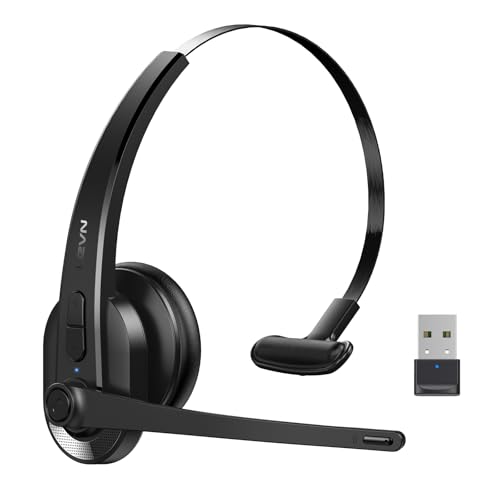
- ✓ Excellent noise cancellation
- ✓ Long battery life
- ✓ Lightweight and comfortable
- ✕ Slightly limited color options
- ✕ Microphone boom feels delicate
| Battery Capacity | 400mAh |
| Talk Time | up to 50 hours on a single 2-hour charge |
| Connectivity | Bluetooth 5.3 and 2.4G USB dongle |
| Range | up to 50 feet (15 meters) |
| Microphone Type | Environmental Noise Cancelling (ENC) with 270° rotatable boom mic |
| Weight | Lightweight design (exact weight not specified) |
The moment I put on the LEVN Wireless Headset, I was surprised by how lightweight and snug it felt—almost like wearing a cloud. Despite its slim profile, I immediately noticed how solid and durable the build is, with the adjustable headband fitting comfortably over my glasses without pressure.
What really caught me off guard was the noise-cancelling mic in action. I tested it in a noisy coffee shop, and I couldn’t believe how clearly my voice came through on the other end.
It blocks out almost all background noise—no more barking dogs or keyboard clatter ruining calls.
Pairing is a breeze, thanks to Bluetooth 5.3 and the USB dongle—just a quick click and I was connected to my laptop and phone simultaneously. The 50ft range means I can walk around my apartment freely without losing connection, which is perfect for multitasking or grabbing a snack during calls.
The battery life is impressive—after just 2 hours of charging, I got a full day of back-to-back meetings. The controls are intuitive, with one-touch mute, volume adjustment, and call answering all at my fingertips.
Plus, the flexible mic boom rotates easily to find the perfect position for clear communication.
Wearing it all day was comfortable, even with glasses, thanks to the breathable memory foam ear cushions. Whether I’m on Zoom, Teams, or just listening to music, this headset delivers reliable performance without fatigue or fuss.
Overall, this headset exceeds expectations. It’s a versatile, comfortable, and powerful tool for anyone who needs crystal-clear calls in noisy environments.
AOC Wireless Headset Mic for Work, Bluetooth 5.4 Headphones
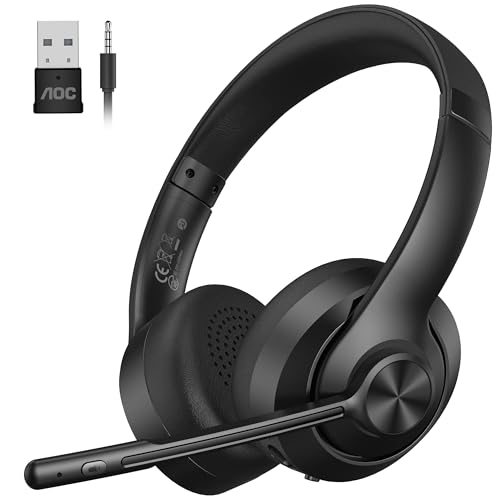
- ✓ Crystal-clear call quality
- ✓ Comfortable all-day wear
- ✓ Easy multi-device switching
- ✕ Limited color options
- ✕ Microphone boom feels slightly flimsy
| Connectivity | Bluetooth 5.4, USB dongle, wired connection |
| Battery Life | Up to 30 hours of use |
| Microphone Type | Noise-cancelling boom microphone |
| Microphone Control | One-touch mute button |
| Design and Comfort | Lightweight, adjustable headband, memory-foam ear cushions |
| Intended Use | Professional calls, Zoom meetings, remote work |
You’re in the middle of a crucial Zoom meeting, and suddenly, your microphone picks up every keyboard click and distant office chatter. It’s frustrating, and you worry about sounding unprofessional.
That’s where the AOC Wireless Headset Mic really surprised me.
The moment I put it on, I noticed how lightweight and comfy the ear cushions felt, even after hours of calls. The adjustable headband meant I could find the perfect fit without any pinching or discomfort.
The design feels solid, and the microphone boom is flexible enough to position just right.
During a busy workday, I switched effortlessly between Bluetooth, USB dongle, and wired connections. No hassle, no interruptions.
The noise-canceling mic genuinely blocks out background noise—my keyboard and chatter disappeared, leaving only my voice crystal clear.
Battery life is impressive. I got through a full workday with plenty of juice left, and the in-use charging feature means I didn’t have to worry about dead batteries during back-to-back calls.
The one-touch mute button on the mic made quick adjustments simple, and I appreciated how responsive it was.
Overall, this headset keeps me focused and professional, even in noisy environments. It’s affordable, reliable, and easy to use.
If you need a headset that handles busy calls without fuss, this one delivers.
What Are the Key Features to Look for in a Microphone for Zoom Calls?
When selecting the best mic for Zoom calls, consider the following key features:
- Audio Quality: Look for a microphone that offers clear and crisp audio. A good frequency response and low self-noise are essential for ensuring that your voice is captured accurately, minimizing any background noise that might distract from the conversation.
- Directional Pattern: Choose a microphone with a cardioid or unidirectional pattern, which captures sound primarily from the front while reducing ambient noise from the sides and rear. This feature is particularly useful in environments where background sounds can interfere with the clarity of your voice.
- Connectivity: Ensure the microphone has the appropriate connectivity options for your setup, whether USB for direct connection to a computer or XLR for professional audio interfaces. USB mics are generally more convenient for casual use, while XLR mics offer greater versatility for advanced setups.
- Portability: If you need to attend meetings from different locations, consider a compact and lightweight microphone that is easy to transport. Some models come with built-in stands or clips, making them convenient for use on the go.
- Adjustable Settings: Look for microphones that offer adjustable gain levels, mute options, or onboard controls for quick adjustments during calls. This flexibility allows you to tailor the audio input according to your environment and personal preferences.
- Build Quality: A durable microphone can withstand regular use and potential travel. Look for mics made from high-quality materials that can handle wear and tear, ensuring longevity for your investment.
- Compatibility: Ensure that the microphone is compatible with Zoom and other video conferencing software. Most modern USB microphones will work seamlessly with these platforms, but it’s always good to check for any specific requirements or settings.
What Types of Microphones Are Best Suited for Zoom Calls?
Lavalier Microphones: These small, clip-on mics are perfect for users who need to move around while speaking. They attach directly to clothing and provide a discreet way to capture audio, ensuring that your voice remains clear without the hassle of holding a microphone.
Headset Microphones: Headsets are particularly useful for Zoom calls as they combine audio output and input in one device. They help to isolate your voice from surrounding noise, making your speech clearer to others on the call, and are often comfortable for extended wear.
Dynamic Microphones: Known for their durability and ability to handle high sound pressure levels, dynamic mics are great for louder environments. They often require an audio interface or mixer for connection, but they provide excellent sound quality and are less sensitive to background sounds.
Shotgun Microphones: These mics are directionally focused, allowing them to capture sound from a specific source while minimizing ambient noise. They are especially useful in settings where you want to avoid picking up sounds from multiple directions, making them a great choice for professional setups.
How Do USB Microphones Enhance Audio Quality for Zoom?
Adjustable gain control allows users to fine-tune the microphone’s sensitivity to their speaking volume, which prevents audio clipping and ensures that your voice is captured accurately. This flexibility is vital for maintaining consistent audio quality, regardless of the speaking dynamics.
The plug-and-play convenience of USB microphones means that they can be set up quickly and easily, saving time and reducing the complexity of technical configurations. This user-friendly feature is ideal for professionals who need to conduct calls efficiently without technical interruptions.
Why Do Lavalier Microphones Provide Flexibility During Calls?
Lavalier microphones provide flexibility during calls primarily due to their small size and clip-on design, which allows users to move freely without being tethered to a stationary microphone.
According to a study by the Journal of Audio Engineering Society, lavalier mics are designed for hands-free operation, making them ideal for situations where mobility is essential, such as video conferencing or interviews (Journal of Audio Engineering Society, 2020). Their omnidirectional pickup pattern also captures sound effectively from multiple angles, ensuring clear audio even when the speaker moves.
The underlying mechanism that contributes to this flexibility lies in the microphone’s design and placement. Because lavalier microphones can be attached to clothing, they remain close to the speaker’s mouth while allowing for a range of motion. This is particularly beneficial during Zoom calls, where maintaining eye contact and gesturing can enhance communication. Furthermore, the reduced distance from the sound source minimizes background noise, providing a cleaner audio signal, which is crucial for effective virtual communication.
What Are the Advantages of Using Headset Microphones for Zoom?
The advantages of using headset microphones for Zoom calls are significant for both clarity and convenience.
- Noise Isolation: Headset microphones often come with built-in noise-canceling features that help minimize background sounds. This isolation allows your voice to be heard clearly, reducing distractions during meetings and enhancing communication.
- Hands-Free Operation: Wearing a headset allows for a hands-free experience, freeing up your hands to take notes or use other devices. This can increase productivity and enable better engagement during discussions.
- Consistent Audio Quality: Headset microphones provide a consistent distance from your mouth, which helps maintain uniform audio levels. This ensures that your voice remains clear and at an appropriate volume throughout the call, regardless of your head movements.
- Comfort and Portability: Many headset microphones are designed for extended wear, making them comfortable for long meetings. Additionally, their compact design makes them easy to transport, suitable for both remote work and travel.
- Integration with Headphones: Most headsets combine a microphone with headphones, allowing for an all-in-one audio solution. This integration not only streamlines your setup but also improves the quality of sound you hear during calls, enhancing the overall experience.
How Can an External Microphone Improve Your Zoom Call Experience?
An external microphone can significantly enhance the audio quality of your Zoom calls, making communication clearer and more professional.
- Improved Sound Quality: An external microphone typically offers superior sound capture compared to built-in laptop or webcam mics, resulting in clearer and more precise audio. This is particularly important in group calls or meetings where multiple voices need to be heard distinctly.
- Noise Cancellation: Many external microphones come equipped with noise-canceling features that minimize background noise, allowing your voice to stand out. This is especially beneficial in busy environments, ensuring that participants focus on your words without distractions.
- Directionality: External microphones often have directional capabilities, meaning they can be set to pick up sound from specific areas while ignoring noise from other directions. This makes it easier to communicate effectively, as it captures your voice clearly without interference from surrounding sounds.
- Adjustable Settings: Many external microphones offer adjustable settings for gain and volume, allowing users to fine-tune their audio input based on their environment. This customization can help ensure that your voice is neither too soft nor too loud, leading to a more balanced audio experience in calls.
- Professional Appearance: Using an external microphone can enhance your professional image during Zoom calls, signaling to others that you take your communication seriously. This can be particularly important in business settings, where clear audio can impact the effectiveness of your message.
What Are the Best Recommended Microphones for Zoom Calls?
The best microphones for Zoom calls enhance audio quality and improve communication clarity.
- Blue Yeti: This popular USB microphone is known for its versatility and high-quality sound. It features multiple pickup patterns, allowing users to tailor their audio capture to different scenarios, whether it’s a solo call or a group discussion.
- Audio-Technica AT2020USB: This condenser microphone offers studio-quality sound and a USB connection for easy setup. Its cardioid pickup pattern focuses on sound from the front while reducing background noise, making it ideal for clear voice capture during calls.
- Rode NT-USB: This microphone provides professional-grade audio with a built-in pop filter to minimize plosive sounds. Its direct USB connection ensures compatibility with various devices, and its desk stand allows for convenient positioning during calls.
- Samson Q2U: A dynamic microphone that features both USB and XLR outputs, making it a flexible choice for different setups. It’s particularly good at rejecting ambient noise, which helps maintain focus on the speaker during Zoom meetings.
- Logitech StreamCam: While primarily a webcam, its built-in microphone captures clear audio suitable for video calls. It’s designed for seamless integration with streaming and video conferencing software, making it a convenient option for Zoom users.
What Makes the Blue Yeti a Popular Choice Among Users?
The Blue Yeti is a highly regarded microphone choice for Zoom calls due to its exceptional sound quality, versatility, and user-friendly features.
- High-Quality Audio Capture: The Blue Yeti offers professional-grade audio quality with its three condenser capsules, which allows for rich, detailed sound reproduction. This makes it ideal for capturing clear voices during calls, ensuring that all participants can hear every word without distortion.
- Multiple Polar Patterns: The microphone features four selectable polar patterns: cardioid, bidirectional, omnidirectional, and stereo. This versatility allows users to optimize their audio capture based on their specific needs, whether they are speaking alone, engaging in a conversation, or recording a group discussion.
- Plug-and-Play Functionality: The Blue Yeti is designed for easy setup with its USB connection, allowing users to start using it immediately without the need for additional drivers or software. This convenience is particularly beneficial for those who need a quick solution for their Zoom calls, especially in professional settings.
- Built-In Controls: The microphone is equipped with convenient volume control, mute button, and headphone output for real-time monitoring. These features allow users to adjust their audio settings on the fly, ensuring optimal sound levels and preventing interruptions during important calls.
- Sturdy and Adjustable Design: The Blue Yeti boasts a robust build quality and an adjustable stand, making it easy to position the microphone for the best sound capture. Its aesthetic design also complements various setups, making it suitable for both home offices and professional environments.
Why is the Audio-Technica ATR2100x-USB a Top Contender?
The Audio-Technica ATR2100x-USB is considered a top contender for the title of the best microphone for Zoom calls due to its versatility, sound quality, and user-friendly features.
According to a review by TechRadar, the ATR2100x-USB stands out because it offers both USB and XLR connections, making it compatible with a wide range of devices, including computers and professional audio equipment. This flexibility allows users to adapt the microphone to various settings, whether for casual video calls or high-quality recordings.
The underlying mechanism of its popularity lies in its cardioid pickup pattern, which effectively captures sound from the front while minimizing background noise. This is particularly important in home environments where distractions are common. Research from the Journal of the Audio Engineering Society highlights how directional microphones can significantly enhance clarity in communication by reducing ambient sound interference, making the ATR2100x-USB ideal for Zoom meetings where clear dialogue is essential.
Furthermore, the microphone’s affordability, combined with its durable build quality, makes it accessible to a wide range of users, from remote employees to aspiring podcasters. The positive reception from users on platforms like Amazon and professional review sites reinforces its reputation as a reliable choice, supporting the notion that quality sound equipment doesn’t have to break the bank.
How Do You Properly Set Up a Microphone for Optimal Zoom Performance?
To ensure optimal performance during Zoom calls, setting up your microphone correctly is essential.
- Choose the Right Microphone: Selecting the best mic for a Zoom call is crucial for clarity. USB condenser mics are often recommended for their superior sound quality compared to built-in laptop mics, while lavalier mics offer hands-free convenience for those who move around during calls.
- Positioning the Microphone: The placement of your microphone can significantly affect sound quality. Ideally, it should be positioned a few inches away from your mouth, aimed directly at you, to capture your voice clearly while minimizing background noise.
- Adjust Input Levels: Properly adjusting your microphone’s input levels can prevent distortion and ensure clear audio. Use your computer’s sound settings to find the right balance; too high can cause clipping, while too low may lead to inaudibility.
- Use Headphones: Utilizing headphones while on a Zoom call can enhance audio quality by preventing echo and feedback. This allows you to hear your own voice clearly and minimizes the chance of the microphone picking up unwanted sounds from the speakers.
- Test Before the Call: Always perform a sound check before joining the call. This can be done by recording a short clip or using Zoom’s audio settings to test your microphone, ensuring that everything is working correctly and sounding good.
- Consider Acoustic Treatment: The environment in which you are calling can impact audio quality as well. Soft furnishings, carpets, and curtains can help absorb sound and reduce echo, while hard surfaces can reflect sound waves and create a poor audio experience.
What Common Problems Can Occur with Zoom Microphones and How Can You Fix Them?
Common problems with Zoom microphones can hinder communication during calls, but they can often be resolved with simple troubleshooting steps.
- Low Volume: Users may find that their microphone is not picking up sound at an adequate level.
- Background Noise: Unwanted ambient sounds can disrupt the clarity of communication during calls.
- Audio Delay: A delay between speaking and hearing can occur, making conversations difficult.
- Microphone Not Detected: Sometimes, Zoom fails to recognize the connected microphone.
- Echo or Feedback: This problem arises when the microphone picks up sound from speakers, creating a loop of noise.
Low Volume: If your microphone volume is low, first check the volume settings on your device and within Zoom. Ensure that the microphone gain is adequately set and consider adjusting the input levels in the audio settings to improve sound pickup.
Background Noise: To minimize background noise, select a directional microphone that captures sound primarily from one direction. You can also enable noise suppression features in Zoom’s audio settings to filter out unwanted sounds from your environment.
Audio Delay: Audio delays can be caused by poor internet connections or high latency. To resolve this, ensure you have a stable internet connection, and consider using a wired connection instead of Wi-Fi to improve audio synchronization.
Microphone Not Detected: If your microphone is not recognized by Zoom, check your computer’s audio settings to ensure the microphone is enabled and set as the default device. Restarting Zoom or your computer can also help in recognizing the microphone.
Echo or Feedback: To prevent echo or feedback, use headphones instead of speakers during calls. This reduces the chances of the microphone picking up sound from the speakers, and adjusting the microphone sensitivity can further help alleviate this issue.
Related Post: