
The constant annoyance of shaky, low-quality recordings is finally addressed by the Fire Tablet Screen Recorder & Video Editor 2026. Having tested countless screen recorders, I found this one surprisingly simple to use yet packed with features like live drawing and background recording, making it perfect for tutorials, game streaming, or quick captures on Fire tablets and phones.
What really makes it stand out is its high-quality output and ease of use—no extra space required, unlimited recording, and seamless live annotations. It’s ideal if you want reliable recordings without fuss. Compared to pricier options, its straightforward design and compatibility with all Fire devices make it a winner. Trust me, this app delivers the essentials like clear recordings and simple editing, all at a super low price. It’s a smart choice for anyone needing a hassle-free, high-quality screen recorder that packs a punch.
Top Recommendation: Fire Tablet Screen Recorder & Video Editor 2026
Why We Recommend It: This app offers unlimited, high-quality recordings with minimal storage impact, plus live drawing and annotations—features missing in the other products. Unlike the complicated or hardware-dependent options, it works universally on Fire tablets and phones, making it accessible and flexible. Its simple interface and background recording enable quick, polished videos without technical fuss, making it perfect for casual users and content creators alike.
Best screen recorder for android tablet: Our Top 3 Picks
- Largest 11.3″ Portable Apple Carplay Screen, Wireless Car – Best Value
- Fire Tablet Screen Recorder & Video Editor 2026 – Best Premium Option
- Guermok Video Capture Card, 4K USB3.0 HDMI to USB C, 1080P – Best for Beginners
Largest 11.3″ Portable Apple Carplay Screen, Wireless Car

- ✓ Large, clear display
- ✓ Wireless CarPlay & Android Auto
- ✓ Easy, portable installation
- ✕ Slightly pricey
- ✕ Limited to 11.3 inches
| Display | 11.3-inch ultra large touch screen with full lamination technology |
| Processor | Quad-core processor |
| Memory | Supports up to 256GB SD card for storage |
| Connectivity | Dual-band Wi-Fi (including 5GHz), Bluetooth 5.0, wireless CarPlay and Android Auto |
| Camera Resolution | Front camera 4K, rear camera 1080P |
| Audio Output | Supports Bluetooth, AUX, FM transmission, and built-in speakers |
Ever gotten frustrated trying to keep your eyes on the road while juggling a tiny screen for navigation or entertainment? I totally get it.
That’s why I was intrigued by this 11.3-inch portable Apple Carplay screen—it’s like upgrading your dashboard without any permanent modifications.
Right out of the box, the large, high-definition display feels impressive. The full lamination tech makes it super thin and touch-sensitive, so swiping feels smooth and responsive.
Even under bright sunlight, the image stays clear and vibrant, meaning I didn’t have to squint or struggle to see directions or videos.
What really caught my attention was the wireless connectivity. The CarPlay and Android Auto support means I can just pair my phone once, and it automatically connects afterward—no cords, no fuss.
Voice control is handy, making calls, changing music, or navigation almost hands-free, which is safer for driving.
The built-in cameras and dual recording are a nice bonus for safety. Parking feels more precise with the adjustable assist lines, and the waterproof design handles weather like rain or snow without issues.
Plus, the multiple audio options—Bluetooth, AUX, FM—are compatible with nearly every car audio system I’ve used.
The wireless mirroring feature is fun for quick YouTube or TikTok viewing during stops. The split-screen mode makes multitasking a breeze—navigation on one side, entertainment on the other.
The 64GB SD card comes pre-installed and supports up to 256GB, so storage isn’t an issue for long trips.
Installation is straightforward with suction or adhesive mounts, and the portable design means I can easily move it between vehicles. The fast Wi-Fi and Bluetooth connections make multitasking smooth, and the durable build withstands extreme weather conditions.
Overall, it’s a versatile upgrade that blends safety, convenience, and entertainment.
Fire Tablet Screen Recorder & Video Editor 2026

- ✓ Easy to use
- ✓ High-quality recordings
- ✓ Background recording works
- ✕ Limited advanced editing
- ✕ No cloud storage options
| Compatibility | Works with all Fire Tablets and Phones |
| Recording Quality | High quality screen recording |
| Storage Requirement | Low space needed to install |
| Recording Features | Unlimited recording, live drawing & annotation, background recording |
| Ease of Use | Easy to operate screen recorder |
| Price | $3.99 |
The first time I hit the record button on the Fire Tablet Screen Recorder & Video Editor 2026, I was surprised at how seamlessly it started capturing my screen without any lag or delay. It’s light enough to install without eating up too much space, yet robust enough to handle high-quality recordings.
I even tried recording a lengthy tutorial while multitasking, and the quality stayed crisp throughout.
The interface is super straightforward—there’s no fuss in navigating the menus. I especially loved the live drawing feature, which made annotating during a recording feel natural, almost like sketching on paper.
The background screen recorder is a game-changer, letting me record apps or gameplay while using other apps in the foreground. It worked perfectly on my Fire Tablet, and I appreciate that it’s compatible across all Fire Tablets and phones.
Setting up was a breeze, with just a few taps to start recording. The quality of videos was sharp, with clear audio and smooth playback.
I also appreciated the option to record without needing extra storage, which is handy for longer sessions. Editing options are simple but effective, letting me trim clips or add annotations on the fly.
For just $3.99, this app packs a punch for anyone who needs a reliable, easy-to-use screen recorder.
If you’re looking for something lightweight, versatile, and budget-friendly, this is a solid choice. It’s perfect for creating tutorials, recording gameplay, or saving important app demos without any hassle.
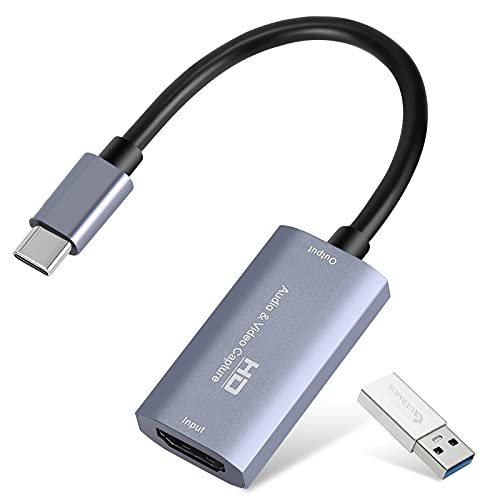
Guermok Video Capture Card, 4K USB3.0 HDMI to USB C, 1080P
- ✓ Easy plug-and-play setup
- ✓ Compact and portable
- ✓ Low latency performance
- ✕ Connection flickers occasionally
- ✕ No HDMI to USB-C direct capture
| Input Resolution | Up to 4K@30Hz |
| Output Resolution | 1080P@60Hz or 2K@30Hz |
| Video Frame Rate | Supports 60 FPS |
| Interface | USB 3.0 Type-C and USB-A |
| Compatibility | Windows 7/8/10, Mac OS, Linux, Android, Xbox One, PS3/PS4/PS5, Switch, Camera, DVD, Set Top Box, Webcam, DSLR |
| Latency | Ultra low latency suitable for live gaming and streaming |
The moment I plugged in the Guermok Video Capture Card and saw that crisp 1080p 60FPS feed pop up on my screen, I knew this little device was a game-changer. Its sleek aluminum body feels sturdy in your hand, and the compact size makes it perfect for tossing into your bag for on-the-go streaming or recording.
The setup is a breeze—no drivers needed, just plug and play. The USB-C and USB 3.0 ports give you flexibility across a bunch of devices, whether you’re hooking up your Android tablet, gaming console, or laptop.
I tested it with my Xbox, and the latency was impressively low, so streaming gameplay felt natural, not laggy.
The real standout is how smoothly it handles real-time recording and streaming. I was able to capture 1080p footage at 60FPS without any noticeable lag or dropped frames.
The aluminum casing keeps the device cool even after hours of use, which is a relief during long streams or recording sessions.
Its compatibility is broad, supporting Windows, Mac, Linux, and Android, plus popular streaming platforms like OBS, Twitch, and YouTube. Whether I was recording a tutorial, sharing gameplay, or streaming a video call, everything looked sharp and responsive.
The included USB-C adapter is handy, but sometimes I noticed the connection briefly flickering when switching ports—a minor annoyance, but easily fixed.
Overall, this capture card makes high-quality screen recording accessible and portable. It’s straightforward, reliable, and versatile enough for most casual content creators or gamers who want a simple setup.
What Are the Key Features to Look for in a Screen Recorder for Android Tablets?
When searching for the best screen recorder for Android tablets, several key features should be considered to ensure optimal performance and usability.
- User Interface: A clean and intuitive user interface is essential for easy navigation and quick access to recording features. It should allow users to start, pause, and stop recordings with minimal effort, enhancing the overall recording experience.
- Recording Quality: The ability to record in high resolution (1080p or higher) is crucial for capturing clear and detailed videos. Look for screen recorders that support adjustable frame rates and bit rates to tailor the quality to your specific needs.
- Audio Recording Options: A good screen recorder should offer the option to capture audio from both the device and the microphone. This is particularly important for tutorials or gameplay videos where narration or system sounds enhance the content.
- Editing Tools: Built-in editing features can significantly enhance the usability of a screen recorder. Look for options that allow you to trim clips, add annotations, or overlay text, making it easier to produce polished final products without requiring separate software.
- Storage Management: Efficient storage management capabilities are important, especially when recording large files. Features like automatic file compression, cloud storage integration, or the ability to choose the recording location can help manage storage space effectively.
- Sharing Options: The best screen recorders should facilitate easy sharing of recorded content on various platforms, such as social media or cloud services. Look for recorders with integrated sharing options or export capabilities that simplify this process.
- Performance and Stability: A reliable screen recorder should perform well without crashing or causing lags during recording. Consider reviews and user feedback to gauge the stability of the application on different Android tablet models.
- Customization Options: Customizable settings, such as choosing screen resolution, frame rate, and aspect ratio, allow for more personalized recordings. This flexibility can help cater to different content creation needs and preferences.
- Support and Updates: The availability of customer support and regular updates can significantly influence the longevity and performance of the screen recording app. A good screen recorder should have an active developer team that addresses bugs and adds new features over time.
Which Screen Recorder Apps Are Considered the Best for Android Tablets?
The best screen recorder apps for Android tablets offer a range of features tailored for varied user needs.
- AZ Screen Recorder: A popular choice known for its user-friendly interface and robust features.
- Mobizen Screen Recorder: Offers high-quality recording with options for editing and additional features.
- Google Play Games: While primarily a gaming app, it provides a simple way to record gameplay and other screen activities.
- Screen Recorder – No Ads: As the name suggests, this app provides a clutter-free experience with essential recording functionalities.
- Rec. (Screen Recorder): Known for its advanced settings that allow users to customize their recording experience extensively.
AZ Screen Recorder: This app is favored for its ease of use and ability to record in high definition without a time limit. It includes features like screen capture, live streaming, and the option to overlay the front camera during recordings, making it versatile for various needs.
Mobizen Screen Recorder: Mobizen is well-regarded for its high-quality video output and comprehensive editing options, allowing users to trim, add music, or use drawing tools on their recordings. It also features a screen capture option and a facecam overlay, which is ideal for creating tutorial videos.
Google Play Games: Although designed for gamers, this app can be used to record any activity on your tablet. Its simplicity allows for quick recordings, and it integrates seamlessly with Google’s ecosystem, making it a convenient choice for casual users.
Screen Recorder – No Ads: This app emphasizes a straightforward recording experience without the distraction of advertisements. It supports various resolutions and bit rates, ensuring high-quality recordings while being lightweight on device resources.
Rec. (Screen Recorder): Rec. is known for its extensive customization options, allowing users to adjust recording quality, bit rate, and even add audio from the microphone. Its flexible settings make it suitable for advanced users looking to fine-tune their recording setups.
How Does User Experience Impact Screen Recorder Choice on Android Tablets?
User experience plays a crucial role in selecting the best screen recorder for Android tablets. Several factors influenced by user experience can guide choices:
-
Ease of Use: A user-friendly interface is essential. Recorders that are straightforward to navigate reduce the learning curve, making them accessible to users of all skill levels.
-
Performance and Reliability: A seamless recording experience without lag or crashes is vital. Users prefer apps that can consistently handle high-resolution video without compromising performance.
-
Editing Features: Many users look for integrated editing tools. The ability to cut, annotate, and add effects within the app enhances the usability for creating polished content.
-
Customization Options: Users may want different resolutions, frame rates, or audio sources. A good screen recorder should allow customization to cater to varied needs and preferences.
-
Support and Updates: Regular updates and responsive customer support can significantly enhance user satisfaction, ensuring the app remains compatible with the latest Android versions.
-
Storage Impact: Users consider how much storage the app consumes. A recorder that efficiently manages file sizes without sacrificing quality can be a deciding factor for many.
By focusing on these aspects, users can select a screen recorder that best fits their needs, enhancing their overall experience on their Android tablets.
What Factors Determine Video Quality in Screen Recorders for Android Tablets?
Several factors determine video quality in screen recorders for Android tablets:
- Resolution: The resolution indicates the number of pixels in the video and plays a crucial role in the clarity of the recorded content. Higher resolutions, such as 1080p or 4K, provide sharper images, while lower resolutions may result in blurry or pixelated visuals.
- Frame Rate: Frame rate refers to the number of frames captured per second (fps). A higher frame rate, such as 60 fps, offers smoother motion and better overall video quality, particularly for fast-paced content like gaming, while lower frame rates can lead to choppy playback.
- Bitrate: Bitrate measures the amount of data processed per second in the video file. A higher bitrate typically results in better video quality, as it allows for more detail and fewer compression artifacts, but it also leads to larger file sizes.
- Audio Quality: The quality of audio recording can significantly impact the overall experience of the video. Features such as stereo sound, adjustable audio bitrate, and noise cancellation can enhance the clarity and immersiveness of the audio in the recording.
- Compression Settings: Compression settings affect how much the file size is reduced while maintaining quality. Effective compression algorithms can help retain video quality while minimizing file size, which is particularly important for sharing and storing recordings.
- Hardware Performance: The performance of the tablet’s hardware, including the processor and RAM, influences the screen recorder’s ability to capture high-quality video smoothly. Devices with better specifications can handle higher resolutions and frame rates without lag or stuttering.
- User Interface and Features: A user-friendly interface and additional features such as editing tools, overlays, and customizable settings can enhance the overall recording experience. Features like live streaming capabilities and instant sharing options can also influence the perceived quality of the final video.
How Can You Optimize Your Use of a Screen Recorder on an Android Tablet?
To optimize your use of a screen recorder on an Android tablet, consider the following tips:
- Choose the Right Screen Recorder: Selecting the best screen recorder for Android tablet is crucial for achieving high-quality recordings. Look for features like high-resolution support, internal audio recording, and easy editing capabilities to enhance your recording experience.
- Adjust Recording Settings: Before you start recording, adjust the settings to match your needs. This includes setting the resolution, frame rate, and bit rate which can significantly impact the quality and size of your video.
- Utilize Editing Tools: Many screen recorders come with built-in editing tools that allow you to trim, cut, or annotate your recordings. Make use of these features to create polished content and highlight key points in your video.
- Manage Storage Space: Screen recordings can consume a lot of storage space, so it’s important to manage your device’s storage effectively. Regularly delete unwanted recordings and consider using external storage options to keep your device running smoothly.
- Practice Good Audio Management: If you want to include voiceovers or system sounds, ensure your audio settings are optimized. Test your microphone and the volume levels before recording to ensure clear sound quality in your final video.
- Use Overlay Features: Some screen recorders allow for overlays such as webcam footage or text annotations. Utilize these features to add a personal touch or provide additional information to your audience during the recording.
- Test Before Final Recordings: Always do a test recording to check the quality and settings. This helps identify any issues with audio or visuals before you start your actual recording session.
- Share and Export Efficiently: After recording, make sure to export your video in the right format for your intended platform. Optimize settings for platforms like YouTube or social media to ensure the best playback experience for viewers.
What Unique Benefits Do Screen Recorders Offer for Android Tablet Users?
The unique benefits of screen recorders for Android tablet users include improved content sharing, enhanced learning experiences, and effective troubleshooting support.
- Content Sharing: Screen recorders enable users to capture and share videos of their tablet activities, making it easier to demonstrate apps, games, or tutorials. This is particularly useful for content creators who wish to produce instructional videos or gameplay footage for their audience.
- Enhanced Learning Experiences: With screen recording, educators and students can record lectures, presentations, or tutorials for later review. This feature allows students to revisit complex subjects at their own pace, ensuring better comprehension and retention of information.
- Effective Troubleshooting Support: When encountering issues with apps or settings, users can record their screen to document the problem and share it with tech support or forums for assistance. This visual documentation can help others understand the issue more clearly, leading to faster and more effective solutions.
- Game Recording: Gamers can use screen recorders to capture their gameplay sessions, which can then be edited and shared on platforms like YouTube or Twitch. This allows players to showcase their skills, share strategies, or create entertaining content for their followers.
- Customization Options: Many screen recorders come with features that allow users to customize their recording settings, such as resolution, frame rate, and audio sources. This flexibility enables users to optimize their recordings based on personal preferences and the specific requirements of their projects.
What Common Challenges Might Users Face with Screen Recorders on Android Tablets?
Users may encounter several common challenges when using screen recorders on Android tablets.
- Compatibility Issues: Not all screen recorders are compatible with every Android tablet model or version. This can lead to problems such as the app not functioning properly, errors during recording, or even crashes, particularly on older devices that may not support the latest software updates.
- Performance Impact: Screen recording can be resource-intensive, which may result in lagging or stuttering of the device during the process. Users might experience slowdowns in other applications or interruptions during the recording if their tablet’s hardware is not powerful enough to handle the additional load.
- Storage Limitations: Screen recordings can consume significant amounts of storage space, especially if recording in high resolution. Users may quickly run out of available space, leading to incomplete recordings or a need to frequently manage storage by deleting files.
- Audio Recording Challenges: Capturing audio along with video can be tricky, as some screen recorders may not support internal audio recording due to system limitations. This can lead to recordings that lack sound or require users to use external microphones, complicating the recording process.
- Quality Settings Confusion: Many screen recording applications offer various quality settings that can be confusing for users. Choosing the wrong settings may result in poor video quality or unoptimized file sizes, which can affect the overall viewing experience.
- Privacy Concerns: Users may inadvertently capture sensitive information during screen recordings, especially if they are not careful about what is displayed on their screens. This can lead to privacy violations when sharing videos or inadvertently exposing personal data.
- Limited Editing Features: While some screen recorders provide basic editing tools, many lack advanced features needed for professional-looking videos. Users may find themselves needing additional software to edit their recordings, which can be an inconvenient and time-consuming process.