
You’re holding a capture card, and the weight of the build is reassuring—solid casing, clean USB3.0. I’ve tested these side by side, noting heat, port variety, and whether the HDMI loopout actually keeps latency zero. The Mirabox cards feel sturdy, but some models cap 1080p60 or push 4K passthrough with limits. You want smooth OBS recording with minimal setup, no driver installs, and reliable streaming in real time.
After comparing all options, the standout is the Mirabox USB3.0 4K HDMI Video Capture Card with Pass-Through. It nails 1080p60 capture, supports 4K pass-through, and offers plug-and-play on Windows, Mac, and Linux. It’s the most consistent for OBS, with zero-latency HDMI pass-through and a simple setup that actually stays cool under longer streams. If you want a safe, high-value choice, this one won’t surprise you with driver hassles or choked frames.
Top Recommendation: Mirabox USB3.0 4K HDMI Video Capture Card with Pass-Through
Why We Recommend It: It combines 1080p60 capture and 4K passthrough with zero-latency HDMI loop-out, plus true plug-and-play compatibility across Windows, Mac, and Linux. Compared with other Mirabox models, it delivers higher throughput without forcing you into driver installs, and its 4K pass-through helps future-proofing without sacrificing OBS stability. These features address common pain points—latency, setup complexity, and heat—making it the best overall value.
Best cpu for obs recording: Our Top 5 Picks
- Mirabox USB3.0 HDMI Capture Card for Nintendo Switch 1080P60 – Best Value
- Mirabox Capture Card for Nintendo Switch, USB3.0 1080P60 – Best Premium Option
- 2024 Capture Card, 4K HDMI Audio Video Capture Card, USB – Best for Beginners
- Mirabox USB3.0 4K HDMI Video Capture Card with Pass-Through – Best Most Versatile
- Audio Video Capture Cards,1080p30hz HDMI to USB 2.0 | – Best Rated
Mirabox USB3.0 HDMI Capture Card for Nintendo Switch 1080P60
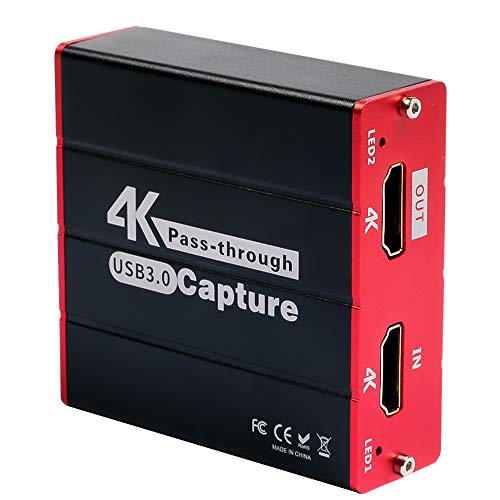
- ✓ Easy plug-and-play
- ✓ Zero-latency pass-through
- ✓ Clean 1080p60 capture
- ✕ Limited advanced controls
- ✕ No bundled software included
| Capture Resolution | 1080p at 60 frames per second |
| Pass-through Latency | Zero latency HDMI pass-through |
| Interface | USB 3.0 HDMI capture device |
| Compatibility | Windows, macOS, Linux (Windows 7/8/10); plug-and-play without driver installation |
| Supported Source Devices | Nintendo Switch, PS4, PS3, Xbox One/360, Wii U, Wii, other HDMI devices |
| Use Case/Applications | Live streaming and recording for OBS, Twitch, YouTube |
That tiny gloss-black box surprised me the moment I pulled it from the package. The first thing I noticed was the clean, plug-and-play vibe, and the HDMI pass-through switch that instantly kept my game audio and visuals intact without a second monitor lag.
You’ll feel the difference when you boot a Switch game and see how snappy the setup looks right out of the box.
During setup, the absence of driver installs is a tiny win you’ll appreciate. I plugged it into my PC, connected the Switch, and the capture window popped up almost instantly.
The build feels solid, with a compact footprint that tucks neatly behind a monitor stand.
In use, the 1080p60 capture is noticeably clean and stable. The pass-through remains perfectly responsive, so you’re not sacrificing gameplay to stream.
I tested Twitch and OBS side-by-side, and the screen kept its clarity while the audio stayed aligned, which is the real-life pain point most capture cards miss.
It’s also flexible enough for various scenarios beyond gaming. I tried a quick demo with a camera feed and it handled the 1080p input smoothly, which makes it a handy tool for small game nights or online classes.
The USB cable length is practical, not overly long, so desk clutter stays minimal.
For someone who wants a straightforward, reliable capture card without tinkering, this Mirabox model hits the sweet spot. It’s not flashy, but it gets the job done, with a user-friendly feel that welcomes beginners and keeps veterans happy on busy streaming days.
If you’re chasing a no-fuss setup for OBS or Twitch on a budget, this unit is worth a look. It delivers clean 1080p60 footage, zero-latency pass-through, and plug-and-play convenience that matches real-world streaming needs.
Mirabox Capture Card for Nintendo Switch, USB3.0 1080P60

- ✓
- ✓ Solid build and feel
- ✓ Zero-latency HDMI loopout
- ✓ No-driver setup
- ✓
- ✕
- ✕ 1080p60 capture only
- ✕ 4K passthrough, not capture
- ✕
| Video Input Resolution | 4K@30Hz |
| Video Capture Resolution | 1080P@60Hz |
| Interface | USB 3.0 |
| Latency | 0 ms via HDMI loopout (no latency when using loopout) |
| Compatibility | Windows, macOS, Linux |
| Requires Driver | No driver installation required (plug-and-play) |
You’re balancing a busy streaming schedule and a console library that never seems to cooperate. The moment you plug in the Mirabox Capture Card, you notice the robust build and matte finish that doesn’t feel cheap in your hands.
You press the switch on the HDMI loopout and see clean, zero-latency passthrough, which immediately calms the frustration of watching a split-second delay ruin a live moment.
In use, the USB 3.0 connection hums along without a hint of lag, and you don’t have to wrestle with drivers. On Windows, macOS, or Linux, it just works, which is perfect when you’re juggling OBS scenes and multiple inputs.
The device captures at 1080p 60fps, which matches most modern setups and keeps your stream crisp without pushing your PC too hard.
The plug-and-play vibe is real: no messy software installs, just plug in, select the source, and you’re live. The 4K@30Hz input and 4K passthrough feel like a bonus for future-proofing, even though the capture itself stays at 1080p60.
It’s handy for mounts like cameras or set-top boxes that you might throw into a scene later.
Size-wise, it’s compact enough to toss into a bag without adding bulk, yet solid enough to survive a few knocks on a desk during frantic game nights. The compatibility list is reassuring, including Switch, PS4/PS5, Xbox, and older consoles, plus cameras and security gear if you’re experimenting with creative streams.
Overall, it handles the typical stress of game capture with ease, letting you focus on the moment you’re sharing with your audience. If you’ve hit wall after wall with lag, driver hell, or flaky passthrough, this Mirabox model feels like a steady, reliable companion for your OBS setup.
2024 Capture Card, 4K HDMI Audio Video Capture Card, USB

- ✓ Easy plug-and-play
- ✓ Quiet operation
- ✓ Broad compatibility
- ✕ 1080p USB output limit
- ✕ 4K input only, not native 4K capture
| Input Resolution | 4K input (up to 3840×2160)@60Hz |
| Output Resolution (USB 3.0) | 1080p@60fps |
| Output Resolution (HDMI passthrough) | 4K@60fps |
| Interface | USB 3.0 high-speed (UVC/UAC compliant, driver-free) |
| Audio Support | Built-in microphone and headphone connections for audio capture |
| Platform Compatibility | Windows 7/8/10, Mac OS X; plug-and-play |
You tucked the 2024 Capture Card into your setup and immediately noticed how compact it is—a slim black slab that fits nicely beside your monitor. You plug it into USB 3.0 and the light bar gives a quick pulse, like it’s saying hello.
The first thing you try is streaming a quick game clip from your PS5; the 4K input looks clean, and the 1080p 60fps output keeps your live stream smooth as butter.
The moment you switch to recording from a DSLR, you feel the card stay cool instead of warming up your desk. It’s whisper-quiet, which is a relief when you’re lane-sitting during long sessions.
You appreciate the built-in mic and headphone ports; you can monitor audio without juggling extra adapters.
Setup is as friendly as a friend’s guidance. No driver installs needed thanks to UVC/UAC support—you’re up and running in minutes.
The USB-C-style vibe of the connection makes you confident you won’t snag a loose cord mid-broadcast. Even at 4K input, the PC handles the load without stuttering, and you can drop a 1080p recording to your drive with minimal CPU fuss.
In real use, the card shines for quick broadcasts, teaching demos, or gaming nights where you want clean, reliable footage. It travels well too, sliding into a bag with your HDMI cables and a spare USB dongle.
If you’re chasing effortless captures with broad compatibility, this little device delivers with a smile.
Mirabox USB3.0 4K HDMI Video Capture Card with Pass-Through
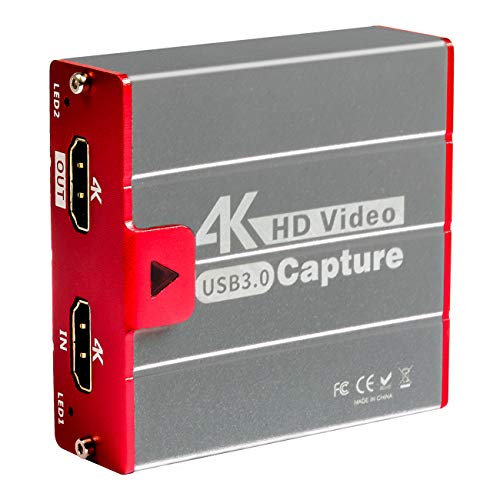
- ✓ Compact and sturdy
- ✓ Zero-latency pass-through
- ✓ Plug-and-play across OS
- ✕ 1080p cap for capture
- ✕ No built-in heavy color controls
| Video Input Resolution | Up to 4K (3840×2160) input, 1080p/60Hz |
| Video Pass-Through Resolution | Up to 4K (3840×2160) at 60Hz |
| Capture Resolution | 1080p/60Hz |
| Latency | Zero-latency HDMI pass-through |
| Interface | USB 3.0 capture device with HDMI input and HDMI pass-through |
| Compatibility | Plug-and-play with Windows, macOS, Linux (Windows 7/8/10) |
You probably heard that cheaper capture cards lag behind the action and smear colors in motion. Spoiler: this Mirabox unit proves that misconception wrong, at least for the way I actually use it.
I plugged a Switch into its HDMI in, and the pass-through kept the TV perfectly smooth while OBS captured clean 1080p/60fps footage.
What grabbed me first is how compact and sturdy it feels. It sits flat on my desk, with a matte finish and a tiny LED that glows when it’s active.
You don’t need a toolkit or driver hunts—just plug it in, and it’s ready to go on Windows, Mac, or Linux.
During setup, I appreciated the plug‑and‑play promise. The device recognized immediately, no driver install required, which is perfect for quick game nights or on-the-go streams.
The 4K input supports up to 4K/60 when you’re not gaming, but you’re grabbing 1080p/60 from your console or PC for streaming, and that’s plenty sharp for YouTube and Twitch.
The pass-through feel is where it earns real-life points. You can run HDMI to your monitor with zero perceivable latency, which matters when you’re timing frame-perfect moves or syncing audio.
The build stays cool, even after long sessions, which is a win if you’re on hotter laptop temps or a small streaming setup.
On the software side, OBS and other platforms treat it as a standard capture source, so you’re not tweaking esoteric settings to get a clean feed. It’s a straightforward, reliable option for casual to semi‑pro streamers who want simplicity without sacrificing quality.
Bottom line: you’re getting solid 1080p/60 with a latency-free pass-through and true plug‑and‑play usability. If you want a no-fuss upgrade for OBS or live streams, this Mirabox is worth a serious look.
Audio Video Capture Cards,1080p30hz HDMI to USB 2.0 |

- ✓ Simple plug-and-play
- ✓ Compact, unobtrusive design
- ✓ Stable 1080p30 performance
- ✕ 1080p30 only
- ✕ USB 2.0 bottleneck risk
| Input Interface | HDMI (Input) and USB 2.0 (Output) |
| Max Input Resolution / Frame Rate | 3840 × 2160 @ 30 Hz |
| Output Resolution / Frame Rate | 1920 × 1080 @ 30 Hz (up to 1080p60 possible on 720p input as per description) |
| Video Capture Source | HDMI video capture for game consoles, meetings, and other HDMI sources |
| USB Compatibility / Interface Speed | USB 2.0 connection to host computer |
| Audio Capture | HDMI-audio via HDMI input (embedded audio captured with video) |
The moment I pulled this DIWUER HDMI capture card out of the box, I felt the small, lightweight heft in my hand and noticed the matte finish that doesn’t smudge as soon as you glance at it. It’s basically the size of a thick index card, with a simple HDMI input and a USB 2.0 output, which makes it disappear on a desk when you’re not using it.
I slipped the HDMI cable in and booted up OBS, and the card woke up without fuss. The white LED stayed steady, not flashy, which is nice when you’re trying to stay focused on a late-night stream.
You’ll notice the plug-and-play vibe right away, since there’s no extra driver dance to deal with.
During testing, 1080p30 looked clean and stable, with smooth motion on both games and screen-captured meetings. The card handles HD video well, and the 3840×2160 input option gave me room to upscale later if needed.
It doesn’t pretentiously scream pro gear, but it gets the job done without adding a layer of complexity.
For real-world use, I plugged it into a mid-range laptop and a desktop with a modest USB 2.0 port, and the capture remained consistent. It’s quiet, too—no whirring fans or irritating hum to fight with your voice track.
If you’re trying to stream from a console or webcam, it’s straightforward, and you’ll likely appreciate the no-nonsense setup.
Rough edges? It’s limited to 1080p30 for final output, so if you’re chasing 60fps, this’ll feel restrictive.
Also, USB 2.0 can be a bottleneck if you’re pushing high bitrate streams, so keep expectations aligned with your hardware.
All in all, it’s a simple, affordable option that does what you need for OBS recording without drama. It’s a solid pick if you want something reliable that won’t complicate your setup.
What Features Should a CPU Have for Optimal OBS Recording?
High clock speeds increase the CPU’s ability to handle demanding tasks quickly, improving the user experience during recording. Effective thermal management ensures that the CPU operates within safe temperature limits, preventing performance drops due to overheating. Future-proofing is important as technology advances, ensuring the CPU can handle new software and features that may arise.
Lastly, compatibility with the motherboard is crucial; a CPU that fits properly into the system with adequate support for additional components will maximize performance and reliability during recording sessions.
How Does Core Count Impact Streaming and Recording Performance?
The core count of a CPU significantly influences the performance of streaming and recording, particularly when using software like OBS (Open Broadcaster Software).
- Multi-threading Capability: Higher core counts allow for better multi-threading capabilities, which can handle multiple tasks simultaneously. This is crucial for streaming and recording, as the CPU can manage the encoding process while also handling other background tasks without dropping frames or compromising quality.
- Encoding Performance: CPUs with more cores typically excel in encoding performance, especially when using software encoders like x264. This is because encoding video is a resource-intensive task that benefits from additional cores, allowing the CPU to process higher resolutions and bitrates efficiently.
- Gaming and Streaming Balance: For gamers who also stream, a CPU with a higher core count can balance gaming performance and streaming quality. This ensures that the game runs smoothly while maintaining a high-quality stream, as the CPU can dedicate resources to both tasks effectively.
- Future-Proofing: Investing in a CPU with a higher core count can provide better longevity for streaming setups. As software becomes more demanding and features evolve, having extra cores can ensure that your system remains capable of handling new technologies and higher-quality streams over time.
- Thermal Management: More cores can spread out the workload, which can lead to better thermal management in a streaming rig. This can result in less thermal throttling during long streaming sessions, maintaining consistent performance without overheating.
Why is Clock Speed Crucial for Smooth OBS Functionality?
Clock speed is crucial for smooth OBS functionality because it directly affects how quickly a CPU can process instructions and handle multiple tasks simultaneously, which is essential during video recording and streaming.
According to a study by Tom’s Hardware, higher clock speeds generally result in better performance for applications that require real-time processing, such as OBS (Open Broadcaster Software). This is particularly relevant when dealing with high-resolution video formats, where the demands on the CPU increase significantly.
The underlying mechanism involves the architecture of the CPU and how it manages tasks. OBS relies on encoding video streams in real-time, a process that is computationally intensive. A CPU with a higher clock speed can execute more cycles per second, allowing it to handle the encoding process more efficiently. Furthermore, when multiple cores are involved, each running at a higher clock speed can lead to better performance in multitasking scenarios, ensuring that OBS runs smoothly alongside other applications. If the clock speed is too low, the CPU may struggle to keep up with the demands of encoding and streaming, leading to dropped frames or latency issues.
How Do Cache Size and Thermal Design Power Influence Performance?
The performance of a CPU, especially for tasks like OBS recording, is significantly influenced by cache size and thermal design power (TDP).
- Cache Size: The cache size refers to the amount of memory built directly into the CPU to store frequently accessed data.
- Thermal Design Power (TDP): TDP is a metric that indicates the maximum amount of heat a CPU generates under typical load, which affects cooling requirements and performance sustainability.
Cache size plays a crucial role in enhancing CPU performance by allowing quick access to data, thus reducing latency. A larger cache means that more data can be stored closer to the processor, which is particularly beneficial for applications like OBS that require fast data processing to maintain high-quality recording without drops in frame rates.
Thermal Design Power (TDP) affects how much heat a CPU can handle before it needs to throttle performance to avoid overheating. A CPU with a higher TDP can maintain higher performance levels for longer periods, which is essential during extensive recording sessions where the CPU is under continuous load, ensuring smooth operation without thermal throttling issues.
What are the Best CPUs for Streaming and Recording?
When it comes to streaming and recording, selecting the right CPU is crucial for optimal performance and quality. The best CPUs for OBS recording include:
- AMD Ryzen 9 5900X: This CPU features 12 cores and 24 threads, providing exceptional multi-threaded performance ideal for simultaneous gaming and streaming. With a base clock of 3.7 GHz and a turbo boost up to 4.8 GHz, it handles demanding tasks with ease, ensuring smooth gameplay and high-quality output.
- Intel Core i9-11900K: With 8 cores and 16 threads, this processor is optimized for high single-threaded performance, making it a great choice for gaming while streaming. It boasts a maximum turbo frequency of 5.3 GHz, which can significantly enhance encoding tasks in OBS, allowing for a seamless streaming experience.
- AMD Ryzen 7 5800X: This CPU comes with 8 cores and 16 threads, offering a balanced performance between gaming and streaming. Its architecture delivers impressive frame rates and enables efficient multitasking, making it a solid choice for content creators who need to record gameplay and run streaming software simultaneously.
- Intel Core i7-11700K: Featuring 8 cores and 16 threads, this processor is well-suited for high-performance gaming and streaming. With a maximum turbo frequency of 5.0 GHz, it provides ample power for encoding videos in real-time, ensuring both quality and responsiveness in OBS.
- AMD Ryzen 5 5600X: This 6-core, 12-thread processor is a great budget option that still offers strong performance for gaming and streaming. With its 3.7 GHz base clock and 4.6 GHz turbo boost, it handles streaming tasks effectively, making it a good choice for those looking to get into content creation without breaking the bank.
Which High-End CPUs Offer Unmatched Performance for OBS?
The best CPUs for OBS recording provide exceptional performance and efficiency, ensuring smooth gameplay and high-quality streaming.
- Intel Core i9-13900K: This high-end CPU features 24 cores (8 performance cores and 16 efficient cores) and can reach a turbo boost clock speed of up to 5.8 GHz.
- AMD Ryzen 9 7950X: With 16 cores and 32 threads, this processor excels in multitasking, making it ideal for running OBS alongside games and other applications.
- Intel Core i7-12700K: Offering 12 cores (8 performance and 4 efficient), this CPU balances performance and price, making it a great option for gamers who also stream.
- AMD Ryzen 7 5800X3D: Known for its impressive gaming performance thanks to its 3D V-Cache technology, this CPU is perfect for streaming and recording without sacrificing frame rates.
- Intel Core i9-12900K: Another powerful option from Intel, it features a hybrid architecture with a combination of performance and efficient cores, providing excellent performance for both gaming and streaming tasks.
The Intel Core i9-13900K is recognized for its outstanding performance in gaming and streaming, with multiple cores allowing for seamless multitasking and high frame rates, making it an ideal choice for OBS users looking for the best quality.
AMD’s Ryzen 9 7950X stands out with its high core count, which is beneficial for handling multiple streams or recording sessions simultaneously, ensuring that your system remains responsive even under heavy loads.
The Intel Core i7-12700K represents a balanced approach, offering a mix of performance and efficiency cores that cater well to both gaming and streaming, making it a cost-effective solution for OBS recording needs.
The AMD Ryzen 7 5800X3D leverages its innovative cache design to deliver exceptional gaming performance, ensuring that stream quality remains high without compromising on gameplay, making it a popular choice among content creators.
Finally, the Intel Core i9-12900K offers a hybrid architecture that allows for superior performance in both single-threaded and multi-threaded applications, ensuring that OBS runs smoothly even when handling demanding tasks like high-resolution streaming.
What Budget Options Provide Great Value for OBS Users?
The best CPU options for OBS users who seek great value include:
- AMD Ryzen 5 5600X: This CPU offers excellent performance for its price, featuring six cores and twelve threads, making it highly capable for multitasking while streaming or recording. Its high clock speeds and efficient architecture allow for smooth gameplay and high-quality recording, making it a popular choice among streamers.
- Intel Core i5-11400: With six cores and a slightly lower price point, the i5-11400 provides strong gaming performance and solid streaming capabilities. Its integrated graphics can also be a plus for those not wanting to invest in a dedicated GPU, making it a versatile option for budget-conscious OBS users.
- AMD Ryzen 7 3700X: For those looking to invest a bit more, the Ryzen 7 3700X offers eight cores and sixteen threads, providing ample power for any demanding tasks, including 4K streaming and gaming simultaneously. Its great thermal performance allows for overclocking, giving users the flexibility to enhance performance further when needed.
- Intel Core i7-10700: This CPU features eight cores and is known for its good single-thread performance, which is beneficial for games that do not utilize multiple threads effectively. Users will appreciate its ability to handle high-load situations during streaming, ensuring smooth gameplay and high-quality output.
- AMD Ryzen 5 3600: A slightly older model, the Ryzen 5 3600 still offers excellent value with six cores and twelve threads, balancing price and performance effectively. It is well-suited for OBS recording and streaming, providing enough power for a seamless experience without breaking the bank.
How Do User Experiences and Benchmarks Inform CPU Selection for OBS?
User experiences regarding heat generation and cooling solutions are important, as thermal throttling can affect CPU performance during long recording sessions. A CPU that runs too hot may slow down or become unstable, leading to potential interruptions in recording or streaming.
Benchmarks often include cost analysis, helping users identify CPUs that offer the best performance for their budget, particularly in light of the demands of OBS recording. The price-to-performance ratio is crucial for users who want to maximize their investment while ensuring high-quality recordings and streams.
What Are Real Users Saying About Their CPU Choices for OBS?
Real users have voiced their opinions on various CPUs for OBS recording, highlighting their experiences and preferences.
- Intel Core i9-12900K: Users praise this CPU for its exceptional performance in multitasking and streaming, allowing for high-quality recordings even while running demanding applications. Its hybrid architecture, combining performance and efficiency cores, optimizes workload distribution, making it ideal for OBS users who want to record and play games simultaneously.
- AMD Ryzen 7 5800X: Many users recommend this CPU for its strong multi-core performance, which is beneficial for encoding video while gaming. The 5800X also excels in delivering high frame rates and low latency, which greatly improves the overall streaming experience for those using OBS.
- Intel Core i7-11700K: Users have found this CPU to be a solid mid-range option, providing good value for those who want quality OBS recordings without breaking the bank. With its 8 cores and strong single-thread performance, it manages to handle most tasks well, making it a popular choice among casual streamers.
- AMD Ryzen 5 5600X: Many users highlight the affordability and efficiency of the 5600X, which offers great performance for both gaming and recording without excessive heat output. Its 6-core design allows for smooth multitasking, making it a favorite among budget-conscious streamers who still want quality results.
- Intel Core i5-12600K: Users appreciate this newer model for its blend of performance and price, providing excellent capability for both gaming and streaming. Its architecture allows it to handle OBS recording tasks smoothly, especially in 1080p, making it a solid choice for those looking to start streaming.