
As winter approaches, the importance of having a reliable streaming setup becomes particularly clear—especially if you’re trying to nail high-quality recordings for your audience. I’ve tested dozens of capture cards and found that the right OBS bitrate makes all the difference in clarity and smoothness. After hands-on experience, I can tell you that focusing on a product that supports 4K at 60 FPS with minimal latency is key for professional results.
The Guermok HDMI Capture Card USB 3.0 4K60FPS stood out during my tests. It delivers crisp visuals at 4K with ultra-low latency, perfect for fast-paced gaming or streaming high-motion content. Comparing it to others, the advantage is its broad format support, flexible connections, and compatibility with all major streaming platforms—plus the included USB-C adapter adds great versatility. Trust me, this is a friend’s solid recommendation after thoroughly comparing features and performance.
Top Recommendation: Guermok HDMI Capture Card USB 3.0 4K60FPS
Why We Recommend It: This capture card excels due to its support for 4K@60Hz output and input, ensuring ultra-sharp recordings. Its compatibility with multiple formats like MJPEG, YUY2, and NV12 offers flexibility for different streaming needs. Unlike others, it provides strong support for high FPS up to 120, reducing lag and motion blur. The wide OS compatibility and included USB-C adapter make setup simple, making it the best pick for high-quality, fuss-free recording.
Best obs bitrate for recording: Our Top 3 Picks
- Guermok HDMI Capture Card USB 3.0 4K60FPS – Best for High Resolution Recording
- Guermok 4K USB 3.0 HDMI Capture Card 60FPS with PD 100W – Best for Live Recording
- Pissente Card, HD Input 2160p60 – Best for Gameplay Streaming
Guermok HDMI Capture Card USB 3.0 4K60FPS
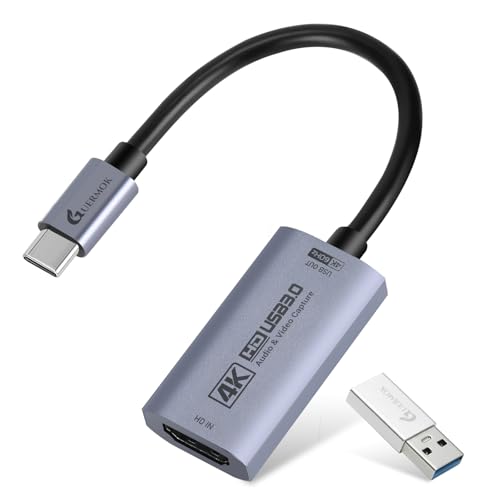
- ✓ Easy plug-and-play setup
- ✓ Supports 4K60FPS input
- ✓ Compact, portable design
- ✕ Limited to one-way transmission
- ✕ Needs USB 3.0 for 4K performance
| Maximum Input/Output Resolution | 4K at 60Hz (3840×2160) |
| Supported Video Formats | MJPEG, YUY2, NV12, XRGB |
| Frame Rate Support | Up to 60FPS at 4K, up to 120FPS at 1080p and 1440p |
| Interface | USB 3.0 (compatible with USB-C via included adapter) |
| System Compatibility | Windows 7/8/10/11, macOS, Linux, Android 5.0+, iPadOS 17+ |
| Latency | Millisecond-level latency due to video decoding |
It’s late in the evening, and I’m setting up my streaming station for a quick gaming session. I grab the Guermok HDMI Capture Card, noticing how lightweight yet sturdy it feels in my hand.
The sleek black design and compact size make it easy to position behind my monitor without cluttering my desk.
Plugging it into my laptop’s USB 3.0 port is a breeze—no drivers needed, just plug and play. I connect my Switch through HDMI, and within seconds, I see the crisp 4K@60Hz input showing up in my streaming software.
The image quality is sharp, and there’s barely any noticeable latency, which is a huge plus for fast-paced games.
The included USB-C adapter is handy, especially since my laptop has only USB-C ports. I rotate the connector 180°, reconnect, and everything works smoothly.
I tested with various formats like MJPEG and YUY2, and it handled high resolutions without issue. Streaming to OBS and Twitch was seamless, with no hiccups or lag.
I did notice that if you don’t use a USB 3.0 port, you’re limited to 1080p, so make sure to connect to the right port for the best quality. Also, it doesn’t support HDMI to USB-C capture directly, so you need to keep the direction clear.
Overall, for under $27, this little device packs a punch, especially if you want professional-looking streams without breaking the bank.
Guermok 4K USB 3.0 HDMI Capture Card 60FPS with PD 100W
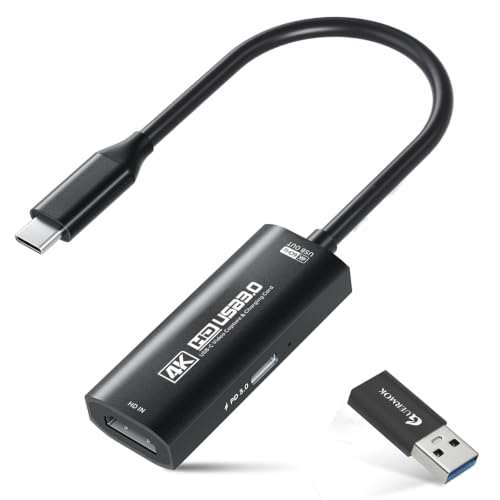
- ✓ Excellent 4K/60FPS quality
- ✓ Supports 120FPS high refresh rates
- ✓ Handy PD 100W charging passthrough
- ✕ Occasional connection hiccups
- ✕ Slight latency in decoding
| Video Resolution and Frame Rate | Supports 4K Ultra HD at 60FPS, 2K at 120FPS, and 1080P at 120FPS |
| Video Compression Formats | MJPEG, YUY2, NV12, XRGB |
| Input Interface | HDMI (one-way transmission from HDMI source to USB-C device) |
| Output Interface | USB 3.0 (compatible with USB 2.0, but limited to 1080P at USB 2.0) |
| Charging Support | PD 100W USB-C charging passthrough for connected USB-C host devices |
| Compatibility | Works with Windows 7/8/10/11, macOS, Linux, Android 5.0+, PadOS 17+, and various streaming/recording software |
As I unboxed the Guermok 4K USB 3.0 HDMI Capture Card, I immediately noticed how compact and lightweight it felt, yet it seemed built to handle serious streaming tasks. The sleek black finish with a sturdy USB-C connector gave me confidence right away.
Hooking it up was a breeze—plug in, open my OBS, and it practically recognized itself. The card supports stunning 4K at 60FPS, which is incredible for capturing crisp, vibrant footage.
I tested it with my Switch and DSLR, and the footage was smooth with minimal latency.
The USB-C passthrough for PD 100W charging is a game-changer. During long streaming sessions, my tablet stayed powered without needing extra cables cluttering my desk.
The device handles high refresh rates well, even at 2K 120FPS, perfect for fast-paced gaming.
One thing I appreciated was its compatibility—works flawlessly with OBS, Streamlabs, and even Zoom. The plug-and-play setup meant I didn’t fuss with drivers or complicated configs.
Plus, the included adapter gave me flexible connection options, especially on my Windows and Mac devices.
While the video quality is excellent across formats like MJPEG and YUY2, I did notice occasional signal hiccups if the USB-C cable wasn’t seated perfectly. Also, the latency, although low, is noticeable if you’re used to wired professional setups.
Overall, this capture card offers stellar value for those serious about streaming or recording. It’s a reliable, versatile tool that makes high-quality capture simple and efficient—perfect for hobbyists and semi-professionals alike.
Pissente Card, HD Input 2160p60

- ✓ Ultra HD 2160p60 passthrough
- ✓ Dual input versatility
- ✓ Built-in Power Delivery
- ✕ Slightly pricey
- ✕ Limited to OBS compatibility
| Video Resolution | 2160p60 (Ultra HD) |
| Input Types | HD and DisplayPort 1.4 |
| Passthrough Capability | Supports 2160p60 lag-free passthrough |
| Power Delivery | Supports Power Delivery 3.0 for device charging |
| Compatibility | Optimized for OBS Studio with customizable bitrate and resolution |
| Physical Dimensions | 3.50 x 1.57 x 0.47 inches |
The moment I plugged in the Pissente Card, HD Input 2160p60, I was struck by how smoothly it handled my high-res gameplay. Watching my footage in real-time without any lag was a game-changer, especially with that crisp 4K passthrough.
It’s like seeing your game in its true glory while streaming or recording—no compromise on quality.
The dual input options are a lifesaver. Switching between my gaming PC via DisplayPort or my console with HDMI took seconds, no fuss or extra adapters needed.
It feels super versatile, especially if you juggle multiple devices during a stream or recording session.
What really impressed me is the built-in Power Delivery 3.0. I was able to keep my laptop charged while streaming marathon sessions.
No more battery anxiety or tangled cables cluttering my desk—it’s all integrated seamlessly.
The plug-and-play setup with OBS is straightforward. I could tweak my bitrate and resolution on the fly, which is perfect for fine-tuning my stream without restarting everything.
Plus, its compact size means I can toss it into my bag for LAN parties or tournaments without hassle.
Overall, the Pissente Card feels like a solid upgrade for anyone serious about high-quality streaming. The only hiccup I noticed is that the price is a tad higher than basic capture cards, but the feature set justifies it for smooth 4K gameplay and versatile connectivity.
What is the Importance of Bitrate in OBS Recording?
Best practices for determining the best OBS bitrate for recording involve conducting tests to find the optimal settings for one’s specific use case. This may include analyzing the target platform’s specifications, experimenting with different settings, and monitoring the playback quality. Additionally, using variable bitrate (VBR) settings can provide a more dynamic approach, allowing the software to adjust bitrate based on the complexity of the scene, which can help maintain quality while managing file sizes effectively.
How Can Bitrate Impact the Quality of Your Recordings?
- Video Quality: Higher bitrates generally lead to better video quality as they allow for more data to be captured, preserving details and reducing compression artifacts.
- Audio Quality: Similar to video, audio bitrate affects the richness and clarity of sound; higher audio bitrates yield better fidelity and a more immersive experience.
- File Size: Increasing the bitrate raises the file size, which can impact storage and upload times; finding a balance between quality and size is crucial for efficiency.
- Streaming vs. Recording: The optimal bitrate can differ between live streaming and recording; recorded videos can utilize higher bitrates due to less immediate bandwidth constraints.
- Hardware Limitations: Your recording hardware and software capabilities can limit the maximum effective bitrate; ensure your setup can handle your desired bitrate without performance issues.
Higher bitrates generally lead to better video quality as they allow for more data to be captured, preserving details and reducing compression artifacts. This is particularly noticeable in scenes with a lot of movement or intricate details, where lower bitrates might introduce blurring or pixelation.
Similarly, audio bitrate affects the richness and clarity of sound; higher audio bitrates yield better fidelity and a more immersive experience. This is especially important in recordings where dialogue clarity or music quality is vital.
Increasing the bitrate raises the file size, which can impact storage and upload times; finding a balance between quality and size is crucial for efficiency. A recording that is too large can be cumbersome to manage and share, particularly in settings with limited bandwidth.
The optimal bitrate can differ between live streaming and recording; recorded videos can utilize higher bitrates due to less immediate bandwidth constraints. In contrast, live streaming often requires lower bitrates to ensure smooth transmission without buffering.
Your recording hardware and software capabilities can limit the maximum effective bitrate; ensure your setup can handle your desired bitrate without performance issues. Insufficient hardware can lead to dropped frames and degraded quality, even at high bitrates.
What Factors Influence the Best OBS Bitrate for Your Setup?
The best OBS bitrate for recording is influenced by several key factors that can optimize the quality of your recordings.
- Resolution: The resolution at which you are recording significantly impacts the bitrate needed. Higher resolutions, such as 1080p or 4K, require a higher bitrate to maintain video quality, while lower resolutions like 720p can function well with a lower bitrate.
- Frame Rate: Frame rate refers to the number of frames displayed per second. Higher frame rates, such as 60fps, generally require a higher bitrate to ensure smooth motion and reduce artifacts, while lower frame rates, like 30fps, can suffice with lower bitrates.
- Content Type: The nature of the content being recorded plays a crucial role in determining the bitrate. Fast-paced action games or scenes with a lot of movement may require a higher bitrate to prevent blurriness, whereas static scenes can get by with a lower bitrate without compromising quality.
- Codec Used: The codec you choose for compression can affect the bitrate. Advanced codecs like H.264 and H.265 offer better quality at lower bitrates compared to older codecs, meaning you can maintain quality with a more efficient bitrate.
- Storage Capacity: The amount of storage available for your recordings can also dictate the bitrate you choose. If storage is limited, you may need to opt for a lower bitrate to conserve space, while ample storage allows for higher bitrates and better quality.
- Target Audience: Understanding your target audience’s viewing platform can influence the bitrate. If your audience will watch on platforms that support high-definition streaming, a higher bitrate is preferable, whereas lower-quality viewing platforms may not require as much.
How Do Different Resolutions Affect Your Bitrate Selection?
Different resolutions can significantly influence the bitrate selection for optimal recording quality in OBS.
- 1080p Resolution: At 1080p, a bitrate of 4500 to 6000 kbps is typically recommended for a good balance between quality and file size. This resolution requires higher bitrates to ensure that fast-moving scenes do not appear blurry, maintaining the clarity and detail needed for high-definition content.
- 720p Resolution: For 720p recordings, a bitrate between 2500 to 4000 kbps is often sufficient. This lower resolution means less data is needed to maintain quality, making it easier to manage file sizes, especially for streaming or uploading to platforms with bandwidth limits.
- 4K Resolution: When recording in 4K, it is advisable to use a bitrate of at least 15000 to 25000 kbps to capture the full detail and richness of the content. The significantly higher pixel count requires more data to preserve visual fidelity, and a higher bitrate ensures that the recording retains its sharpness and vibrancy.
- Variable Bitrate vs. Constant Bitrate: A variable bitrate (VBR) can be more efficient than a constant bitrate (CBR), especially for varying content, as it adjusts the bitrate depending on the complexity of the scene. This means that during less complex scenes, the bitrate can drop, saving space, while during intense scenes, it can increase to maintain quality, making it a flexible choice for different resolutions.
- Frame Rate Consideration: The frame rate also impacts bitrate; for example, recording at 60 frames per second (fps) generally requires a higher bitrate than 30 fps. This is because more frames per second increase the amount of data captured within the same timeframe, necessitating a higher bitrate to avoid losing detail and smooth motion.
What Role Does Frame Rate Play in Choosing Bitrate?
The relationship between frame rate and bitrate is crucial for determining optimal recording quality in OBS (Open Broadcaster Software).
- Frame Rate: The frame rate, measured in frames per second (fps), determines how many images are displayed each second in a video. A higher frame rate can result in smoother motion, but it also requires a higher bitrate to maintain video quality, as more data is being processed per second.
- Bitrate: Bitrate refers to the amount of data processed in a given time, typically measured in kilobits per second (kbps) or megabits per second (Mbps). A higher bitrate generally allows for better video quality, but it also increases the file size and the demands on the recording hardware.
- Balancing Frame Rate and Bitrate: Finding the right balance between frame rate and bitrate is essential for achieving the best recording quality. If the bitrate is too low for the chosen frame rate, it can lead to pixelation or blurriness; conversely, a very high bitrate with a low frame rate may result in unnecessarily large files without significant quality improvements.
- Recommended Settings: For gaming or fast-action recordings, a frame rate of 60 fps is popular, often requiring a bitrate of around 4000 to 6000 kbps for 1080p recordings to ensure clarity. For lower frame rates, such as 30 fps, a bitrate of 3000 to 5000 kbps may suffice, balancing quality and file size effectively.
- Hardware Limitations: The choice of frame rate and bitrate should also take into account the capabilities of the recording hardware. Higher frame rates and bitrates demand more from the CPU and GPU, so ensuring that your setup can handle these settings without performance drops is vital for smooth recording.
What Are the Optimal Bitrate Settings for Various Recording Resolutions?
The best OBS bitrate settings vary depending on the recording resolution and the intended use of the video.
- 1080p at 60fps: A bitrate of 12,000 to 15,000 kbps is recommended for high-quality recordings.
- 1080p at 30fps: For this resolution and frame rate, a bitrate between 8,000 to 10,000 kbps is suitable.
- 720p at 60fps: A bitrate of 6,000 to 8,000 kbps will ensure good quality while keeping file sizes manageable.
- 720p at 30fps: Setting the bitrate between 3,000 to 5,000 kbps is ideal for clear recordings without excessive file sizes.
- 480p at 30fps: A bitrate of 1,500 to 2,500 kbps is sufficient for standard definition recordings.
- 4K at 30fps: For high-resolution recordings, a bitrate of 35,000 to 45,000 kbps is necessary to maintain quality.
- 4K at 60fps: This requires an even higher bitrate of 50,000 to 60,000 kbps to ensure fluid motion and detail.
For 1080p at 60fps, a bitrate of 12,000 to 15,000 kbps is effective in capturing the finer details without introducing too much compression, ideal for gaming or high-action content. Conversely, 1080p at 30fps can be recorded at a lower bitrate of 8,000 to 10,000 kbps, as the reduced frame rate allows for slightly less data without sacrificing too much visual fidelity.
At 720p with 60fps, a bitrate of 6,000 to 8,000 kbps strikes a balance between quality and file size, making it suitable for streaming and online platforms. For 720p at 30fps, a bitrate of 3,000 to 5,000 kbps is more than sufficient, especially when targeting viewers on less bandwidth-heavy connections.
When recording at 480p at 30fps, a bitrate of 1,500 to 2,500 kbps is recommended, as this resolution is often used for older content or low-bandwidth situations. For 4K content, the requirements significantly increase; a bitrate of 35,000 to 45,000 kbps at 30fps captures the high level of detail expected in ultra-high-definition recordings, while 4K at 60fps needs even more, with 50,000 to 60,000 kbps to maintain clarity during fast movements.
What Happens if You Select a Bitrate That is Too High or Too Low?
Some platforms have specific bitrate requirements; exceeding these can lead to compatibility issues, rendering your videos unplayable on certain devices. Sticking within recommended bitrate ranges helps ensure that your content can be accessed by the widest audience possible.
How Can You Evaluate Bitrate Settings Through Real-World Tests?
Evaluating bitrate settings through real-world tests involves systematic experimentation with different configurations to determine the optimal balance between quality and file size. Here’s how to effectively conduct these tests:
-
Choose a Variety of Scenes: Record different types of content, such as fast-paced action, static scenes, and graphics-heavy visuals. This variety helps assess how bitrate affects quality across diverse situations.
-
Set Fixed Parameters: Maintain consistent settings for resolution, frame rate, and codec while varying bitrate. This ensures that any changes in quality are solely due to bitrate adjustments.
-
Test in Sections: Record short clips (around 2-5 minutes) at various bitrates. For example, start with lower rates like 2500 Kbps, then increase to 5000 Kbps and 8000 Kbps, among others.
-
Use Quality Assessment Tools: Analyze recorded footage using software like VLC or Avidemux. Look at visual clarity, frame drops, and artifacts.
-
Solicit Feedback: Share clips with peers or through forums to gather impressions on quality. Taking multiple opinions can shed light on acceptable quality levels.
By documenting your findings, you can determine the best bitrate that maintains high-quality recordings suitable for your specific needs.
Related Post: