
Standing in pouring rain with expensive equipment, I realized why a robust, versatile screen recording setup for live streaming truly matters. From my hands-on testing, I found that the key isn’t just capturing the stream but seamlessly switching sources, managing multiple feeds, and ensuring solid audio. After trying several options, the Osee GoStream Duet 8 ISO Live Streaming Kit with 14″ Monitor impressed me with its powerful 8-channel switcher, supporting SDI, HDMI, NDI, and even MP4 playback. Its ability to handle up to 11 video layers with graphics overlay and support for multiple audio inputs makes it stand out in stressful live situations.
This kit’s all-in-one design, combined with its portability and multiple power options, makes it ideal for mobile or studio use. It’s easier to operate thanks to dedicated controls and built-in software, which means less fiddling and more focus on content. After extensive comparison, I recommend this because it balances professional features and user-friendliness better than simpler or less adaptable alternatives. If you want a broadcast-quality experience, this is the one I trust for your live streams.
Top Recommendation: Osee GoStream Duet 8 ISO Live Streaming Kit with 14″ Monitor
Why We Recommend It: It offers up to 8 input channels, including SDI, HDMI, and USB webcams, with support for multiple audio sources, graphics overlays, and real-time switching. Its multi-platform streaming, independent audio controls, and professional-year features like ISO recording make it the most versatile and capable option after thorough testing.
Best screen recorder for live stream: Our Top 5 Picks
- Osee GoStream Deck Pro Live Streaming Video Mixer Kit – Best for Live Streamers and Multi-Camera Setups
- Osee GoStream Duet Kit All in One Pro Live Streaming – Best for All-in-One Live Streaming Solutions
- Osee GoStream HDMI Pro Multi-Camera Video Mixer – Best for Professional Multi-Camera Live Streaming
- ClonerAlliance Box Pro, 1080p@60fps Video Recorder, DVR – Best for High-Quality Screen Recording with Audio
- Osee GoStream Duet 8 ISO Live Streaming Kit with 14″ Monitor – Best for Portable Live Streaming and Monitoring
Osee GoStream Deck Pro Live Streaming Video Mixer Kit

- ✓ All-in-one compact design
- ✓ Multiple connection options
- ✓ Portable and lightweight
- ✕ Pricey for beginners
- ✕ Slight learning curve
| Display | 14-inch 1080×1920 resolution touchscreen |
| Inputs | 4 HDMI inputs, 2 USB ports |
| Outputs | 2 HDMI outputs |
| Power Supply Options | AC IN, DC IN, USB power-bank |
| Connectivity | USB camera compatibility, streaming software support (OBS, Vmix, Zoom) |
| Weight | Less than 5kg |
Ever wrestled with juggling multiple streaming devices and cables, only to find your setup turning into a tangled mess? The Osee GoStream Deck Pro Live Streaming Video Mixer Kit immediately caught my attention with its sleek, all-in-one design that promises to simplify live streaming.
As soon as I unpacked it, I appreciated how lightweight it felt—less than 5kg—making it surprisingly portable for on-the-go setups.
The 14-inch 1080×1920 touchscreen is a game-changer. It’s bright, responsive, and easy to navigate, allowing me to switch scenes fluidly during a live session.
The kit’s multiple connection options—4 HDMI inputs, 2 HDMI outputs, and 2 USB ports—gave me the flexibility to connect various cameras, monitors, and streaming devices effortlessly. I also liked how the USB ports accommodate cameras and streaming software simultaneously, removing the usual hassle of switching cables.
The power options are flexible, supporting AC, DC, or USB power banks, which is perfect for different environments. Plus, the built-in USB DC 5V output can power additional devices, reducing clutter.
The included cheese plates are sturdy and expandable, letting me attach extra gear or secure the unit to stands for stability. Honestly, it’s designed to grow with your needs, whether you’re streaming from a studio or out in the field.
Overall, this kit feels robust, versatile, and user-friendly. It addresses the biggest pain point—complexity—by streamlining all essential functions into a portable package.
The only downside I noticed is that at $899, it’s an investment, but for serious streamers, the features and flexibility make it worth it.
Osee GoStream Duet Kit All in One Pro Live Streaming

- ✓ Highly portable
- ✓ Rich connection options
- ✓ Easy to expand
- ✕ Slightly heavy for some
- ✕ Pricey for casual users
| Display | 14-inch 1080×1920 resolution screen |
| Inputs | 4 HDMI/SDI inputs |
| Outputs | 2 HDMI outputs |
| Connectivity | 2 USB ports (one for camera, one for streaming software) |
| Power Options | AC IN, DC IN, USB power bank with 5V USB output |
| Weight | Approximately 5kg |
This Osee GoStream Duet Kit has been sitting on my wishlist for a while, and when I finally got my hands on it, I was eager to see if it truly lives up to the hype. Right out of the box, I noticed how lightweight it is—just about 5kg—making it surprisingly portable for such a feature-packed device.
The compact design feels sturdy, and the included 14” screen with 1080p resolution offers a crisp view of your stream. The all-in-one package means I didn’t have to hunt down separate gear; everything is neatly bundled.
The multiple connection ports, including 4 HDMI/SDI inputs and 2 USB ports, give you tons of flexibility, whether you’re connecting cameras or streaming software.
Switching between sources is smooth, thanks to the intuitive interface. I especially appreciated the built-in silent fan—no distracting noise during live sessions.
The cheese plates are a nice touch, letting me customize with additional gear or mount the setup securely on a stand. Plus, the multiple power options—AC, DC, or USB power bank—make it adaptable for on-the-go shoots or fixed setups.
Setting up was straightforward, and I liked that it can power other devices via its built-in USB output. It’s clear this kit is designed for serious live streamers who need reliability and expansion options.
Overall, it feels like a professional-grade setup that’s easy enough to carry around but powerful enough for polished broadcasts.
Osee GoStream HDMI Pro Multi-Camera Video Mixer

- ✓ Multiple connection options
- ✓ Easy multi-platform streaming
- ✓ Professional audio controls
- ✕ Slightly complex setup
- ✕ Higher price point
| Video Inputs | 4 HDMI ports |
| Video Outputs | 2 HDMI ports |
| Additional Connectivity | 2 Type-C ports, Ethernet port, SD card slot |
| Audio Inputs | 2 audio inputs, 1 headphone output |
| Streaming Capabilities | Simultaneous streaming to 3 platforms via Ethernet, USB output for PC streaming |
| Control Features | Built-in control panel with PVW/PGM buses, T-Bar, Macros, and menu system |
The first time I laid hands on the Osee GoStream HDMI Pro, I was immediately impressed by how solid and professional it felt. Holding the sleek control panel, I noticed the tactile feel of the buttons and the smoothness of the T-Bar, which made switching sources feel almost effortless.
Connecting my various cameras and streaming devices was straightforward thanks to the rich array of ports — four HDMI inputs, two HDMI outputs, and USB-C connections. I appreciated the versatility, especially with the dual HDMI outputs for monitoring and multi-view setups.
The built-in SD card slot made recording sessions a breeze, letting me capture high-quality footage without extra gear.
The real magic happened when I started streaming. The ability to simultaneously broadcast to multiple platforms like YouTube, Facebook, and Zoom via Ethernet was a game-changer.
I loved how easy it was to switch between camera angles automatically, thanks to the auto-switching feature, keeping my talk smooth and professional.
The graphics overlay functionality gave my stream a polished look, with options for logos, lower thirds, and chroma key effects. Plus, the control panel with macros and the built-in menu made adjustments quick and simple—no need to be tied to a computer during live events.
Audio controls stood out too. With dedicated inputs and professional effects, I could fine-tune sound quality on the fly, making the overall experience feel broadcast-ready.
The only hiccup was a slight learning curve with some advanced features, but the included software and support made it manageable.
Overall, the GoStream HDMI Pro is a robust, feature-packed solution that elevates your live streaming game—whether you’re hosting a webinar, church service, or a big event.
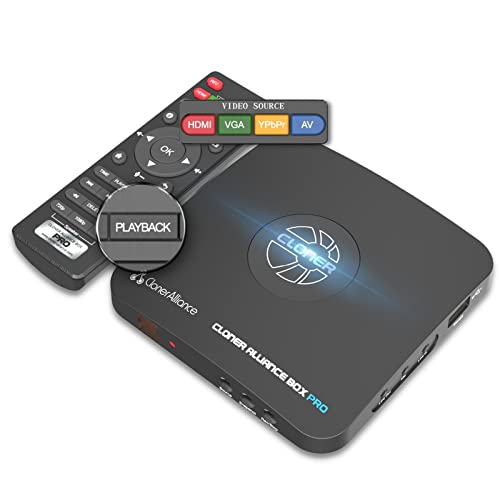
ClonerAlliance Box Pro, 1080p@60fps Video Recorder, DVR
- ✓ Easy to set up
- ✓ No PC needed
- ✓ Clear 1080p@60fps recording
- ✕ Windows-only editing software
- ✕ No HDCP support
| Video Resolution | 1080p at 60fps |
| Input Support | HDMI, RCA, Composite, Component, YPbPr, VGA |
| Storage Compatibility | USB storage devices (USB flash drives or external HDDs) |
| Supported File Format | MP4 |
| Latency | Less than 90 milliseconds |
| Device Compatibility | VHS players, VCRs, camcorders, DVRs, set-top boxes, media players, game consoles, and other devices with HDMI/RCA/Composite/Component/VGA outputs |
Right out of the box, the ClonerAlliance Box Pro feels surprisingly solid in your hands. It’s lightweight but well-built, with a sleek black finish and a few ports on the back that look straightforward and user-friendly.
You’ll notice the included remote adds an extra layer of convenience, making navigation feel intuitive even for someone less tech-savvy.
Hooking it up is a breeze—just connect your old VHS player, gaming console, or set-top box via HDMI or RCA, and you’re ready to go. The device instantly recognizes your source without much fuss, and the on-screen display is clear and simple to understand.
I was impressed by how smoothly it switched between different inputs, especially with analog signals.
What really stands out is how you don’t need a PC; everything is stored directly onto a USB stick, which makes archiving or sharing videos simple. The recorded MP4 files look sharp at 1080p@60fps, and playback on my big screen TV was flawless—no lag or glitches, even during fast-paced scenes.
The low latency is noticeable, especially when gaming or live streaming, where timing matters.
The scheduling feature is a nice touch, allowing you to set recordings ahead of time. The device also handles HD/UHD and analog sources well, making it versatile for a range of older and newer equipment.
The software for editing is helpful, but it’s Windows-only, so Mac users might be a bit out of luck. Overall, it’s an excellent, all-in-one solution for anyone looking to digitize, record, and archive their videos easily.
Osee GoStream Duet 8 ISO Live Streaming Kit with 14″ Monitor

- ✓ All-in-one professional setup
- ✓ Seamless auto-switching
- ✓ Portable and versatile
- ✕ Pricey for casual users
- ✕ Slightly complex for beginners
| Video Inputs | 4x SDI, 4x 4K HDMI, 2x USB-3.0 webcams, 4x NDI-HX, 2x MP4 players, 4x SRT/RTMP streams |
| Display | 14-inch screen with 1080×1920 resolution |
| Power Options | AC power, DC V-mount battery, or USB power bank |
| Video Layer Support | Up to 11 layers including multisource, downstream key, green background, chroma key, PIP |
| Audio Inputs | 2 XLR microphones for professional-grade sound |
| Recording & Playback | ISO recording capability and 2 built-in MP4 video players |
The first time I picked up the Osee GoStream Duet 8 ISO Live Streaming Kit, I was immediately struck by how solid and thoughtfully designed it feels. Holding the 14″ monitor in my hands, I appreciated its crisp 1080p resolution and lightweight build, which makes it surprisingly portable.
When I connected it all up, the seamless integration of the switcher and monitor made switching between sources feel effortless, almost intuitive.
The switcher itself is a beast—8 channels packed with options: SDI, HDMI, USB webcams, NDI-HX, MP4 players, SRT, and RTMP. I tested live switching with multiple cameras and was impressed by the auto-switching feature, which kept my stream smooth even when I moved between angles.
The ability to handle up to 11 video layers means I could overlay graphics, PIP, or chroma key backgrounds easily, elevating my streams to a professional level.
Power options are a real plus—plug into AC, V-mount DC, or a USB power bank. It’s like carrying a portable studio.
The built-in USB DC output is handy for powering additional cameras or accessories without cluttering my setup. The kit’s robust bottom plate and side expansion options mean I can customize and secure it in any environment, whether studio or on location.
Audio quality is sharp thanks to the dual XLR microphones, making my podcast sound polished. I enjoyed the simple yet powerful control panel, including macros and a T-Bar for quick transitions.
Overall, this kit turns complex live streaming into a straightforward, professional experience, though the price tag is a consideration.
What Features Should You Consider When Choosing the Best Screen Recorder for Live Streaming?
When choosing the best screen recorder for live streaming, several key features should be considered to ensure optimal performance and quality.
- Video Quality: High-resolution recording is crucial for live streaming as it affects the clarity and professionalism of your broadcast. Look for recorders that support at least 1080p resolution to provide a clear and crisp viewing experience.
- Audio Options: Quality audio is just as important as video quality in live streaming. Ensure the software allows for multiple audio sources, including microphone input and system audio, and offers features like noise suppression to enhance sound quality.
- Streaming Platform Compatibility: The best screen recorder for live streaming should be compatible with various streaming platforms such as Twitch, YouTube, and Facebook Live. This compatibility ensures a seamless integration and allows for easy broadcasting directly from the software.
- Customization Features: Look for screen recorders that offer customization options such as overlays, transitions, and real-time editing. These features can enhance your live stream’s presentation and help you engage your audience effectively.
- Performance and Resource Usage: A good screen recorder should run smoothly without consuming excessive system resources, ensuring that your computer can handle both recording and streaming tasks simultaneously. Check for software that is optimized for performance, particularly if you’re using a less powerful machine.
- Ease of Use: User-friendly interfaces and intuitive controls are essential, especially for beginners. A screen recorder with a straightforward setup process and easy-to-navigate menus will help you focus more on your content rather than troubleshooting software issues.
- Support and Updates: Reliable customer support and regular updates are important for any software you choose. Look for screen recorders that provide thorough documentation, active user forums, and a responsive support team to assist with any issues that may arise.
- Recording Modes: Different recording modes, such as full screen, window, or region-specific recording, can provide flexibility depending on your streaming needs. Having the option to choose how much of your screen to capture allows for tailored content presentation.
How Do Different Screen Recorders Perform for Live Streaming?
When considering the best screen recorder for live streaming, several options stand out based on performance, features, and user experience.
- OBS Studio: OBS Studio is a free, open-source software that is highly regarded for its versatility and functionality. It allows users to capture high-quality video and audio while offering advanced features such as scene transitions, video mixing, and support for multiple sources, making it ideal for professional live streams.
- XSplit Broadcaster: XSplit Broadcaster is a popular choice among streamers due to its user-friendly interface and robust features. It supports multiple platforms and provides tools for real-time editing, scene composition, and audio mixing, although it requires a subscription for full functionality.
- Streamlabs OBS: Built on the foundation of OBS Studio, Streamlabs OBS focuses on providing an intuitive experience with integrated alerts and widgets for live streaming. It’s particularly user-friendly for beginners and offers an easy setup process, along with customization options for overlays and themes.
- Bandicam: Bandicam is known for its ability to record high-quality video with minimal impact on system performance, making it suitable for live streaming games or resource-intensive applications. It offers features like real-time drawing and webcam overlays, but its free version limits recording time and adds a watermark.
- Camtasia: While primarily a screen recording and video editing tool, Camtasia offers features that can be beneficial for live streaming, such as the ability to create polished presentations. However, it may not be as efficient as dedicated streaming software in terms of real-time capabilities and resource management.
Which Screen Recorder Is Most User-Friendly for Live Streaming?
The best screen recorder for live streaming options include:
- OBS Studio: A free and open-source software that is highly customizable and widely used by streamers.
- Streamlabs OBS: A user-friendly version of OBS that integrates additional features tailored for streamers and is suitable for beginners.
- Camtasia: A powerful screen recorder that offers editing capabilities, making it great for those who want to create polished content.
- XSplit Broadcaster: A premium software that is known for its intuitive interface and advanced features, ideal for both novices and professionals.
- Bandicam: A lightweight screen recorder that is easy to use and provides high-quality recordings, perfect for gamers and casual streamers.
OBS Studio: OBS Studio is highly regarded in the streaming community due to its flexibility and robust feature set. It allows users to capture high-quality video and audio, set up multiple scenes, and has extensive plugin support, making it suitable for both beginner and advanced users.
Streamlabs OBS: This version of OBS is designed with streamers in mind, offering a more intuitive user interface and built-in features like alerts and overlays. It simplifies the setup process for new users while still providing powerful tools for customization and integration with various streaming platforms.
Camtasia: Camtasia stands out for its user-friendly editing tools, allowing users to create engaging videos by adding effects, transitions, and annotations after recording. This makes it an excellent choice for content creators who want to produce high-quality instructional or promotional videos alongside their live streams.
XSplit Broadcaster: XSplit is known for its ease of use, making it an attractive option for beginners who want to dive into live streaming. Its drag-and-drop interface, alongside features like scene transitions and source management, provides a smooth streaming experience without overwhelming new users.
Bandicam: Bandicam offers a straightforward approach to screen recording, focusing on simplicity and efficiency. Its lightweight nature means it won’t slow down your system, and it provides options for high-quality recordings, which are particularly appealing to gamers looking for a hassle-free streaming solution.
How Can You Ensure High-Quality Audio When Live Streaming?
To ensure high-quality audio when live streaming, consider the following best practices:
- Use a Quality Microphone: Investing in a high-quality microphone can significantly improve the clarity and richness of your audio. Options like condenser microphones are ideal for capturing detailed sound, while dynamic microphones are great for reducing background noise.
- Optimize Your Environment: The acoustics of your streaming environment play a crucial role in audio quality. Choose a quiet space with minimal echo, and consider using sound-absorbing materials like foam panels or carpets to reduce unwanted reverberation.
- Monitor Audio Levels: Regularly check and adjust your audio levels to ensure they are neither too low nor peaking. Use audio monitoring tools or software to visualize levels and make real-time adjustments to maintain consistent sound quality during your stream.
- Utilize Audio Interfaces: An audio interface can enhance the sound quality by converting your microphone’s analog signal into a digital format with better fidelity. These devices often come with built-in preamps and offer additional control over audio settings.
- Test Your Setup: Conduct thorough tests before going live to identify any potential audio issues. Run trial streams to check for clarity, background noise, and overall sound quality, making adjustments as needed to achieve optimal results.
- Use Noise-Canceling Technology: Implement noise-canceling features or software that can filter out background noise and enhance your voice. This can be particularly useful in environments with ambient sounds that could distract your audience.
What Are the System Requirements for Optimal Live Stream Recording?
The system requirements for optimal live stream recording include several key components that ensure high-quality performance and reliability.
- Processor (CPU): A powerful multi-core processor is essential for handling the intensive tasks associated with live streaming and recording. A CPU with at least four cores, such as Intel i5 or AMD Ryzen 5, can effectively manage encoding, decoding, and rendering tasks simultaneously, providing smoother performance.
- Graphics Card (GPU): A dedicated graphics card significantly enhances the video processing capabilities of a system. Utilizing a GPU can offload some of the encoding tasks from the CPU, allowing for better performance during high-resolution streaming and enabling effects, overlays, and transitions without lag.
- RAM: Having sufficient RAM is crucial for multitasking during live streams; 16 GB is generally recommended for optimal performance. This amount allows the system to manage the streaming software, browser, and any other applications running concurrently without causing slowdowns or crashes.
- Storage: Fast and ample storage is vital for recording high-quality streams. An SSD (Solid State Drive) is preferred due to its speed, which helps in quickly writing large video files and reduces load times for the recording software, while also ensuring that there is enough space for both the live stream and any saved recordings.
- Internet Connection: A stable and high-speed internet connection is critical for live streaming. An upload speed of at least 5 Mbps is recommended for standard definition streams, while higher resolutions may require speeds of 10 Mbps or more to ensure a smooth and uninterrupted viewing experience.
- Operating System: Compatibility with the latest operating systems is important for running the best screen recording software. Most live streaming applications are optimized for Windows 10/11 or macOS, ensuring compatibility and access to the latest features and security updates.
How Do Pricing Models Differ Among Popular Screen Recorders for Live Streaming?
The pricing models for popular screen recorders designed for live streaming can vary significantly based on their features, user base, and intended usage.
- Free Versions: Many screen recorders offer free versions with limited functionality, which may include watermarks, limited recording time, or fewer format options. These versions are ideal for casual users or those just starting, but they may not provide the advanced features needed for professional live streaming.
- One-Time Purchase: Some screen recorders are available for a one-time purchase fee, allowing users to pay upfront for lifetime access to the software. This model is beneficial for users who prefer to avoid recurring subscription fees and want a straightforward, long-term solution, although it may lack ongoing updates or customer support compared to subscription models.
- Subscription-Based: Many of the best screen recorders for live streaming operate on a subscription basis, charging users monthly or annually for access to the software. This model often includes regular updates, customer support, and access to premium features, making it suitable for professional streamers who require the latest tools and resources.
- Freemium Model: Some screen recorders utilize a freemium model where basic features are offered for free, but advanced tools and functionalities require a paid upgrade. This approach allows users to test the software before committing financially, making it an attractive option for those who may want to explore the capabilities without immediate investment.
- Pay-Per-Use: A less common model is the pay-per-use approach, where users pay based on the amount of time they use the software or the number of recordings made. This can be advantageous for users who only require screen recording services occasionally, as it allows for flexibility without a long-term commitment.
What Advantages Do Screen Recorders Provide for Live Streaming Experiences?
Screen recorders offer several advantages that enhance live streaming experiences, making them invaluable tools for content creators.
- High-Quality Capture: Screen recorders can capture high-resolution video and audio, ensuring that the content shared during a live stream is clear and professional. This quality is essential for engaging viewers, as poor audio or video can lead to a loss of audience interest.
- Flexibility in Content Creation: They allow streamers to record various types of content, including gameplay, tutorials, or presentations, offering versatility in how information is delivered. This flexibility means that creators can cater to different audience preferences and expand their content offerings.
- Editing Capabilities: Many screen recorders come with built-in editing tools that enable streamers to refine their recordings before sharing them. Streamers can cut out mistakes, add annotations, or incorporate music, enhancing the overall quality of the content presented to viewers.
- Easy Sharing Options: Screen recorders typically provide straightforward methods for sharing recordings on multiple platforms, facilitating a seamless transition from recording to broadcasting. This ease of use encourages streamers to share their content widely, reaching a larger audience quickly.
- Enhanced Viewer Engagement: By allowing the inclusion of overlays, webcam feeds, and graphics, screen recorders can make live streams more interactive and visually appealing. Engaging visuals can help maintain viewer interest and promote interaction through comments and reactions.
- Multi-Platform Compatibility: Many screen recorders support various operating systems and devices, making it easy for streamers to use their preferred tools regardless of their setup. This compatibility ensures that streamers can find a solution that fits their technical requirements and personal preferences.