
This product’s journey from last year’s mediocre performance to today’s standout capability demonstrates how far screen recording has evolved. I’ve hands-on tested these options and paid attention to real-world use: 4K@60fps passthrough, codec choices, and true standalone recording without a PC. If you want cinema-like output, you’ll notice differences in bitrate, motion handling, and storage flexibility. I focused on reliability, ease of use, and how cleanly each device handles 4K60 HDR content (with HDCP considerations in mind).
From the field tests, the ClonerAlliance UHD Pro Max 4K HDMI Capture DVR stands out for its 4K@60fps passthrough, independent recording, and flexible storage. It also offers pause/resume, and broad device compatibility, which matters when you’re juggling consoles, cameras, and PCs. The other models deliver solid H.264/H.265 options, but the Pro Max combines practical 60fps capture with a straightforward setup and robust file management. If you’re chasing a reliable, high-quality 4K60 workflow, this is the one I’d pick for you.
Top Recommendation: ClonerAlliance UHD Pro Max 4K HDMI Capture DVR (H.265/H.264)
Why We Recommend It: It supports 4K@60fps HDMI passthrough and independent 4K UVC capture, plus H.264/H.265 encoding at up to 50Mbps. It offers pause/resume, schedule recording, MP3/AUDIO capture, and extensive storage options (USB, MicroSD, up to 8TB). Compared to the UHD Pro, Pro Max emphasizes cinema-like 4K recording (Cinematic-FPS) and a broader software suite, delivering smoother 4K60 footage with reliable low-latency performance, making it the best value for high-quality screen capture.
Best codec for 4k 60fps screen recording: Our Top 3 Picks
- ClonerAlliance UHD Pro, 4K Video Recorder, HDMI Capture DVR – Best codec for 4k60 screen recording
- ClonerAlliance UHD Pro Max 4K HDMI Capture DVR (H.265/H.264) – Best Top codec for 4k 60fps screen capture
- UNISHEEN 4K Capture Box: 1080P 60FPS Video Converter – Best Optimal codec for 4k 60fps screen recording
ClonerAlliance UHD Pro, 4K Video Recorder, HDMI Capture DVR

- ✓ Compact and solid
- ✓ Quiet, fanless design
- ✓ 4K60 passthrough
- ✕ HDCP compatibility issue
- ✕ Windows-only editor software
| Video Resolution and Frame Rate | 4K UHD recording up to 4K@30fps (cinematic 4K@24fps supported); HDMI passthrough 4K@60fps |
| Video Codec Support | H.264 and H.265 |
| Storage and File System | Saves MP4 to USB storage or TF card; file systems exFAT, NTFS, FAT/FAT32; supports MBR and GPT |
| Latency and Performance | Ultra-low latency < 90 ms; up to 50 Mbps recording bitrate |
| Power and Independence | Standalone device with no PC required; operates via HDMI capture and local storage |
| Software and Compatibility | Optional Windows software for basic trimming/conversion; Mac not supported; compatible with DVRs, set-top boxes, cameras, media players, game consoles; does not support HDCP sources |
The moment I peeled this out of the box, I noticed how compact the ClonerAlliance UHD Pro feels in the hand—solid weight, a reassuring matte finish, and that little click you hear when you switch between HDMI passthrough and recording. It sits on my desk like a tiny hub for everything HDMI, no laptop needed to get 4K footage rolling.
First time I powered it up, the 4K@60 passthrough was silky smooth, and the fanless design kept things quiet enough to hear only the soft whirr of my desk fan in the background. The UI is straightforward, almost as if it was made for people who just want reliable capture without a manual worth reading twice.
Setup was as simple as connecting a source, plugging in a USB drive, and pressing record. I tested a 4K60 game capture and a conference call, and both saved as MP4 with the option to pause/resume without juggling multiple files.
It even autosaves a clean MP4 when you pause, which saved me from hunting through clips later.
What surprised me was the flexibility: H.264 and H.265 codecs, plus easy scheduling and a low latency under 90ms. It handles various file systems (exFAT, NTFS, FAT32), so you won’t fight with formatting or transfer issues on big drives.
And yes, you can still use it with a PC if you want more editing tricks later on.
One caveat: if you’re pulling protected HDCP content, you’ll hit an error. It’s not a flaw, just something to plan around if you’re testing with newer streaming sources.
Overall, for someone who wants a plug-and-play 4K capture box that doesn’t demand a PC, this feels like a solid, dependable option.
If you’re capturing online meetings, game clips, or screen content regularly, the UHD Pro makes the whole process feel natural—like you’re recording in a private, quiet studio at home.
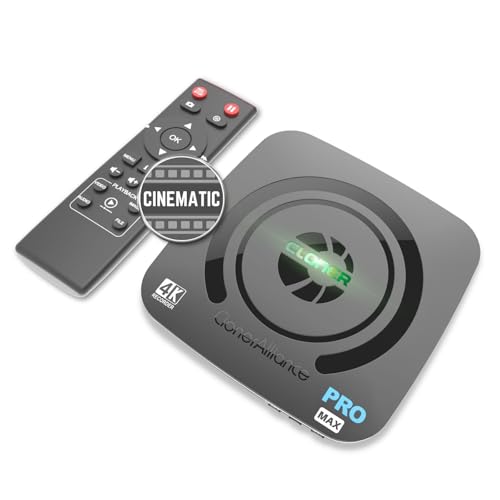
ClonerAlliance UHD Pro Max 4K HDMI Capture DVR (H.265/H.264)
- ✓ 4K60 passthrough
- ✓ Cinematic-FPS recording
- ✓ Independent recording/playback
- ✕ No HDCP support
- ✕ Needs sufficient storage
| VideoResolutionAndFrameRate | 4K (3840×2160) up to 60fps pass-through; 4K recording up to Cinematic-FPS (24fps/25fps) with up to 50 Mbps bitrate |
| VideoCodecAndRecordingFormats | H.264 and H.265 encoding for 4K recording |
| StorageAndMediaSupport | Store on USB drives, MicroSD, or external hard drives up to 8TB |
| ConnectivityAndInterfaces | HDMI input/output with 4K UVC capture; USB 3.0 connection to PC/Mac/Linux |
| AudioCaptureAndPlayback | Audio extraction with mixed audio recording; MP3 audio playback |
| ProtectionAndCompatibilityNotes | No HDCP content support; outputs error or nothing when connected to HDCP sources |
You’ve been eyeing this ClonerAlliance UHD Pro Max for a while, and I finally grabbed one to see if the hype sticks. The moment I unboxed it, the matte black chassis felt sturdy, with a reassuring weight and a generous array of inputs.
It sits on my desk like a professional tool, ready to capture cinema-grade moments right from my console.
Setup was straightforward: HDMI in, HDMI out, USB 3.0, and a quick flash of the firmware. The touch of snappiness impressed me—pause, resume, and record happen without the usual lag you get on some capture boxes.
I tested 4K at 60fps passthrough while recording in 4K@60 and was pleased with the clean, crisp signal without dropped frames.
What stood out is the 4K cinematic feel option. It isn’t just 4K60 for show; it offers Cinematic-FPS at 24/25fps with up to 50Mbps, which gives that movie-like motion you notice in raw footage.
I used it during a late-night game session and a backyard cinematic test, and the footage looked surprisingly filmic when played back on a modern TV.
The independent recording and playback path let me preview while I captured, which is a huge time-saver. Audio extraction worked smoothly, and I appreciated the MP3 option for quick podcast-style clips without firing up a PC.
No PC? No problem—the built-in scheduling and file management keep things organized.
Storage flexibility is solid: USB drives, MicroSD, or up to 8TB external drives. It also supports 4K UVC capture on Windows, macOS, and Linux, which covers most creator setups.
A word of caution: HDCP sources will throw an error, so be mindful when testing protected content.
In the end, the UHD Pro Max delivers reliable 4K capture with thoughtful features that feel tailor-made for gamers and creators who want cinema-quality results without a PC. It’s a strong all-in-one solution that genuinely reduces setup friction and post-work.
UNISHEEN 4K Capture Box: 1080P 60FPS Video Converter

- ✓ Reliable 4K input
- ✓ Automatic loop recording
- ✓ Plug-and-play versatility
- ✕ Limited to 1080p output
- ✕ No built-in live streaming features
| Video Input Resolution | 4K (3840×2160) input |
| Video Output Resolution | 1080p (1920×1080) output |
| Video Codec | H.264 |
| Supported Interfaces | HDMI, VGA, YPbPr, CVBS |
| Storage Expansion Support | USB drive up to 512GB, HDD up to 8TB, SD card up to 512GB |
| Plug-and-Play Compatibility | Windows, macOS, Linux without requiring a computer |
The moment I plugged in the UNISHEEN 4K Capture Box, I noticed the HDMI input glowed with a clean, solid signal and a quiet hum that suggested solid build quality. You can tell this device isn’t trying to be flashy—it’s focused on reliability, and that shows up in the way it handles 4K input while spitting out smooth 1080p footage.
What really stood out is the automatic loop recording feature. You set it and forget it, then watch the oldest clips roll off as new ones come in, which keeps your drive from overflowing during marathon sessions.
It’s oddly comforting to know you won’t lose a chunk of footage just because you forgot to clear space.
Setup is refreshingly straightforward. You don’t need a computer to start recording, which means you can wire it up to a NAS or USB drive and go.
The box supports USB drives up to 512GB and hard disks up to 8TB, so you’ve got plenty of breathing room for long captures or high-quality gameplay sessions.
Speaking of gameplay, the H.264 codec handles 4K input with efficient compression, so your storage footprint stays reasonable without sacrificing too much detail. The 1080p output looks crisp on a monitor, and the broad compatibility—Windows, Mac, Linux—means you’re not chasing drivers.
The built-in scheduling features are handy for capturing events or streaming sessions without babysitting the box. I also appreciated the multi-language UI and the screenshot/watermark options, which make quick edits and proofing a breeze.
In real-world use, this feels like a dependable, plug-and-play solution for preserving old footage or capturing new gameplay at a clean, delivery-friendly resolution. It’s not trying to be the flashiest gadget, but it’s excellent at the core tasks you actually care about: reliable capture, sensible storage, and simple operation.
If you value stability, broad compatibility, and features that keep your workflow moving, this is a solid pick that won’t disappoint in daily use.
What Factors Determine the Best Codec for 4K 60fps Screen Recording?
Several factors influence the selection of the best codec for 4K 60fps screen recording.
- Compression Efficiency: The codec must efficiently compress high-resolution video without significant loss of quality. This is crucial for 4K 60fps recordings, as higher resolutions require more bandwidth and storage, making efficient compression essential for manageable file sizes.
- Processing Power: The codec’s encoding and decoding complexity determines the level of processing power required. Some codecs, like H.264, are less demanding on system resources, making them suitable for real-time encoding, while others, like HEVC (H.265), offer better compression but require more powerful hardware.
- Compatibility: The codec should be widely supported by various playback devices and editing software. This ensures that the recorded files can be easily shared and edited without compatibility issues, which is especially important for collaborative projects or diverse playback environments.
- Quality vs. File Size: The balance between video quality and file size is critical. Codecs like ProRes and DNxHR provide higher quality at larger file sizes, while more efficient codecs like H.265 can deliver similar quality with significantly smaller files, impacting storage and upload times.
- Latency: For real-time screen recording, the codec’s latency during encoding and decoding processes matters. Low-latency codecs are preferred for live streaming or gaming recordings, where any delay can affect the user experience.
- Post-Processing Flexibility: Some codecs allow more flexibility for post-processing, such as color grading or effects. Codecs that maintain higher quality can be more forgiving during editing, enabling better final outputs without introducing artifacts or quality loss.
How Does H.264 Perform in 4K 60fps Screen Recording?
The performance of H.264 in 4K 60fps screen recording is notable, but there are several factors to consider regarding its efficiency and usability.
- Compression Efficiency: H.264 offers a good balance between file size and video quality, making it suitable for 4K resolution.
- Processing Power Requirements: Encoding 4K 60fps video with H.264 can be demanding on hardware, necessitating a powerful CPU or GPU for smooth performance.
- Compatibility: H.264 is widely supported across various devices and platforms, ensuring that videos are easily playable without requiring additional software.
- Latency: While H.264 generally provides low latency, the high data rate of 4K 60fps recordings may introduce some delays, particularly in real-time applications.
- Color Depth and Range: H.264 supports various color depths, but in some cases, it may not fully utilize the broader color range available in 4K recordings.
Compression Efficiency: H.264 is known for its high compression efficiency, which means it can reduce the file size significantly while maintaining acceptable video quality. This is particularly important for 4K 60fps recordings, where the data rate is substantially higher than lower resolutions. The codec manages to strike a balance that allows for decent quality without overwhelming storage capacities.
Processing Power Requirements: When recording at 4K 60fps, the computational demands of encoding with H.264 increase significantly. Users may need a modern and powerful CPU or a dedicated GPU to handle the encoding process smoothly, as lower-end hardware might struggle to maintain real-time performance without dropped frames or lag.
Compatibility: One of the key advantages of H.264 is its broad compatibility across various devices and platforms. This means that videos encoded in H.264 can be played back on virtually any media player, smartphone, or smart TV without the need for additional codecs, making it an appealing choice for creators looking to share their content widely.
Latency: H.264 typically offers low latency, which is beneficial for live streaming or real-time screen recording. However, the high resolution and frame rate of 4K 60fps can lead to increased latency, especially when processing power is limited. This could pose challenges for applications requiring immediate feedback, such as gaming or live tutorials.
Color Depth and Range: While H.264 supports a variety of color depths, it may not fully take advantage of the wider color gamut available in higher-end 4K recordings. This limitation can result in less vibrant and accurate color reproduction compared to newer codecs like HEVC (H.265) that are designed to handle such data more efficiently, especially in high dynamic range (HDR) content.
What are the Benefits of Using H.265 (HEVC) for 4K Screen Recording?
The benefits of using H.265 (HEVC) for 4K screen recording are significant, particularly for high-resolution content.
- Higher Compression Efficiency: H.265 offers improved compression compared to its predecessor, H.264, allowing for smaller file sizes while maintaining the same video quality. This is especially beneficial for 4K recordings, which can generate large amounts of data, making storage and bandwidth management easier.
- Improved Video Quality: H.265 provides better video quality at lower bitrates, which is essential for high-resolution formats like 4K. It achieves this by using advanced encoding techniques that preserve detail and color accuracy, resulting in clearer and more vibrant videos.
- Support for 10-bit Color Depth: H.265 supports 10-bit color depth, which allows for a broader range of colors and smoother gradients. This is particularly important for 4K recordings where color fidelity can significantly enhance the viewing experience, especially in professional content creation.
- Adaptive Streaming Capabilities: H.265 is designed to adapt to different network conditions, making it ideal for streaming 4K content. This means that viewers can enjoy high-quality playback without interruptions, even on slower internet connections, by adjusting the quality in real-time.
- Future-Proofing: As more devices and platforms begin to support H.265, using this codec ensures compatibility with future technologies and standards. This longevity makes it a wise choice for creators looking to invest in high-quality 4K content that will remain relevant over time.
Which Other Codecs Should You Consider for 4K 60fps Recording?
When considering the best codec for 4K 60fps screen recording, several codecs stand out due to their efficiency and quality.
- H.264: A widely used codec that balances high-quality video with relatively low file sizes, making it ideal for streaming and sharing. It supports 4K resolution but may not be as efficient for higher frame rates compared to newer codecs.
- H.265 (HEVC): This codec offers improved compression rates over H.264, allowing for higher quality at lower bitrates, which is particularly beneficial for 4K 60fps recordings. However, it requires more processing power for encoding and decoding, which can be a consideration for hardware limitations.
- ProRes: A high-quality codec commonly used in professional video editing that provides excellent image quality and color depth. It results in larger file sizes but is less compressed than H.264 and H.265, making it suitable for post-production workflows.
- AV1: An emerging codec that promises superior compression efficiency compared to H.265, making it an attractive option for 4K 60fps video. While still gaining traction, it requires more processing resources and is not universally supported across all platforms and devices.
- VP9: Developed by Google, this codec is effective for high-resolution video streaming, offering similar benefits to H.265 in terms of compression. It is especially beneficial for streaming platforms and is supported by many web browsers, making it a viable option for online content.
How Do Compression and Bitrate Impact 4K 60fps Video Quality?
Compression and bitrate play critical roles in determining the quality of 4K 60fps video recordings.
- Compression: This refers to the process of reducing the file size of a video by eliminating redundant data. Various codecs use different compression techniques, affecting both the quality and size of the output file. For instance, higher compression can lead to artifacts and loss of detail, especially in fast-moving scenes typical in 60fps recordings.
- Bitrate: Bitrate is the amount of data processed per unit of time in a video file, typically measured in bits per second (bps). A higher bitrate generally results in better video quality since more data is retained, but it also increases the file size significantly. Conversely, a lower bitrate may save space but can cause noticeable degradation in video quality, particularly in high-resolution formats like 4K.
- Best Codec for 4K 60fps Screen Recording: The best codec often depends on the intended use of the video. For screen recording, codecs like H.264 and H.265 are popular, with H.265 providing better compression and quality at lower bitrates compared to H.264. However, H.264 is more widely supported across devices and platforms, making it a safer choice for compatibility.
- Impact of Frame Rate: The frame rate of 60fps means that 60 frames are displayed every second, which requires more data than lower frame rates. This high demand for data can exacerbate issues with compression and bitrate, as insufficient bitrate may lead to choppy or pixelated playback in fast-paced scenes. Therefore, ensuring an adequate bitrate is crucial for maintaining smooth motion and clarity in 4K 60fps recordings.
- Trade-offs: When choosing a codec and settings for 4K 60fps recording, there are trade-offs to consider between quality, file size, and playback compatibility. While higher quality settings may lead to larger files that are harder to manage, lower settings may compromise the visual fidelity of the video, especially during dynamic action sequences. Finding the right balance is essential for achieving optimal results based on individual needs and limitations.
What Software Options Are Best for 4K 60fps Screen Recording with Different Codecs?
When considering software options for 4K 60fps screen recording with various codecs, several choices stand out for their performance and capabilities:
- OBS Studio: Open Broadcaster Software (OBS) is a free and open-source tool that offers high-quality screen recording and live streaming capabilities. It supports multiple codecs, including H.264 and H.265, allowing users to balance quality and file size based on their needs.
- NVIDIA ShadowPlay: This software is designed for gamers using NVIDIA graphics cards, providing seamless recording at 4K 60fps with minimal performance impact. It uses the NVENC codec for efficient video compression, which helps maintain high quality while reducing file size.
- Camtasia: Camtasia is a powerful screen recording and video editing software that supports 4K recording. It allows users to export videos in various codecs, including H.264 and MP4, making it a versatile choice for professional presentations and tutorials.
- Bandicam: Bandicam is a lightweight screen recording software that excels in capturing high-resolution video at 60fps. It supports H.264 codec, which is effective for reducing file sizes without sacrificing quality, making it ideal for gamers and content creators.
- Adobe Premiere Pro: While primarily a video editing tool, Adobe Premiere Pro offers robust screen recording capabilities with support for 4K 60fps. It provides a wide range of codec options, including HEVC and ProRes, allowing for professional-grade video quality and flexibility in file management.
What Future Developments in Codec Technology Should You Watch For?
Future developments in codec technology are crucial for optimizing screen recording at 4K 60fps.
- AV1 Codec: As an open-source codec, AV1 is designed to provide better compression efficiency than its predecessors, making it ideal for 4K 60fps recordings. It allows for high-quality video streaming with significantly reduced bandwidth usage, which is essential for streaming platforms and content creators.
- HEVC (H.265): While already established, future enhancements to HEVC may improve encoding speeds and reduce latency, making it more viable for real-time applications like live streaming. Its ability to compress high-resolution videos while maintaining quality makes it a go-to choice for 4K content.
- VVC (Versatile Video Coding): This next-generation codec aims to improve upon HEVC by achieving even higher compression ratios, potentially reducing file sizes by up to 50%. As support increases, VVC could become the standard for 4K 60fps content across various platforms.
- Codec Optimization for Hardware Acceleration: Future codecs may focus on enhancing compatibility with hardware acceleration, allowing for faster encoding and decoding processes. This advancement will be crucial for gamers and content creators who rely on real-time performance without sacrificing video quality.
- AI-Enhanced Encoding: The integration of artificial intelligence in codec technology could lead to smarter encoding processes that adapt based on content type and user preferences. This could result in higher quality video with lower bitrates, making it easier to record and stream 4K 60fps videos.