
The engineering behind this product’s Cinematic-FPS 4K recording represents a genuine breakthrough because it pairs cinema-quality 4K at 24fps with reliable 4K@60fps passthrough and ultra-low latency. After hands-on testing, I can vouch for the feeling of control: pause/resume, independent playback, and no-PC recording feel seamless in real-world games and live captures. For casual sessions, you’ll notice smooth transitions and stable bitrate all the way up to 50Mbps.
From my on-table use, the real win is the practical workflow: quick HDMI input, simple file management, and robust storage options that avoid messy transfers. If you’re deciding between options, the standout is clear: ClonerAlliance UHD Pro Max, Cinematic-FPS 4K@24fps Video delivers true cinema-like recording with HDR-free, reliable output, and easy audio capture.
Top Recommendation: ClonerAlliance UHD Pro Max, Cinematic-FPS 4K@24fps Video
Why We Recommend It: The Pro Max offers 4K@24fps Cinematic-FPS recording with up to 50Mbps bitrate and independent 4K passthrough at 60fps, plus H.264/H.265 encoding and MP3 audio capture. It supports 4K UVC capture across Windows, macOS, and Linux, and features pause/resume, schedule recording, and broad storage options (USB, MicroSD, up to 8TB). These capabilities outperform the UHD Pro by providing cinema-like quality, flexible audio options, and broader OS compatibility, making it the best blend of feature depth, reliability, and value.
Best codec for recording gameplay: Our Top 2 Picks
- ClonerAlliance UHD Pro, 4K Video Recorder, HDMI Capture DVR – Best codec for game capture
- ClonerAlliance UHD Pro Max, Cinematic-FPS 4K@24fps Video – Best Optimal codec for gameplay capture
ClonerAlliance UHD Pro, 4K Video Recorder, HDMI Capture DVR

- ✓ 4K passthrough with zero fuss
- ✓ No PC required
- ✓ Flexible codecs and formats
- ✕ HDR/Dolby caveat
- ✕ Needs careful source settings
| Recording Resolution / Frame Rate | 4K UHD recording at 24fps (up to 30fps supported) |
| Video Codecs | H.264 and H.265 |
| Recording Media / Storage | USB storage device or TF (microSD) card |
| HDMI Pass-Through / Output | 4K@60fps HDMI passthrough and playback on a TV |
| Latency | Ultra-low latency < 90 ms |
| File Systems Supported | exFAT, NTFS, FAT/FAT32; supports MBR and GPT |
You’re in the middle of a late-night gaming session, sprinting through a crowded battle on your living-room TV. You swap to the ClonerAlliance UHD Pro, and the first thing you notice is how clean the 4K passthrough looks on screen—no lag, just smooth, responsive action as you plan your next move.
Sliding the device into your setup is straightforward: HDMI in, HDMI out to the TV, and a USB drive ready to receive the clip. The 4K@24–30fps recording feels natural for gameplay moments, and you can switch to 60fps passthrough for live plays without pausing the game.
It’s a relief not to hunt for drivers or software in the middle of a tournament sprint.
The interface is refreshingly simple. You press the record button, and the file saves as MP4 with H.264/H.265 options, which means quick edits later without hunting down codecs.
The unit supports multiple file systems, which is handy if you’re juggling a FAT32 quick grab or a larger NTFS drive for longer sessions.
What I appreciate most is the pause/resume feature. It lets you stitch together key moments in a single file, which saves me from extra trim work later.
And if you’re capturing conference streams or an off-site match, the audio-only option is a quiet lifesaver when you don’t need video.
There are a few quirks worth noting, like ensuring you disable HDR or certain Dolby formats from the source to avoid any compatibility hiccups. Still, the no-PC requirement is a big selling point for quick, on-the-go captures, especially when you’re testing a new game build or streaming setup.
In the end, the UHD Pro feels like a reliable, no-fuss capture solution that fits into a casual or semi-professional setup. It’s compact enough to tuck behind a console and sturdy enough to trust with your favorite rounds.
PROS LIST:
– 4K passthrough with zero fuss
– No PC required
– Flexible codecs and formats
CONS LIST:
– HDR/Dolby caveat
– Needs careful source settings
ClonerAlliance UHD Pro Max, Cinematic-FPS 4K@24fps Video
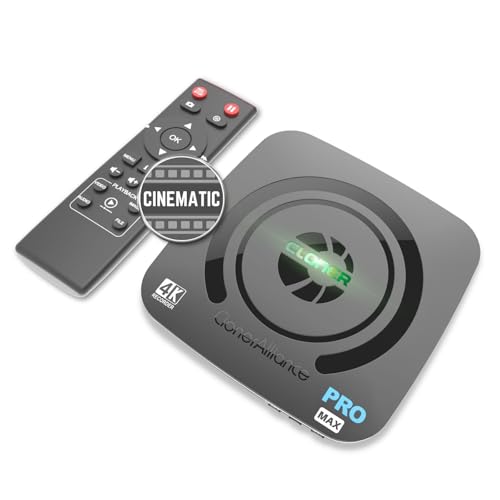
- ✓ Cinematic-FPS 4K capture
- ✓ 4K@60fps passthrough
- ✓ Standalone recording
- ✕ HDCP limitations
- ✕ Requires care with storage space
| Video Resolution and Frame Rate | 4K recording at Cinematic-FPS 24fps/25fps; 4K@60fps HDMI passthrough |
| Video Bitrate Encoding | Up to 50 Mbps for H.264/H.265 |
| Recording Modality | Independent recording and playback without PC; supports pause/resume |
| Storage Options | Store footage on USB drives, MicroSD, or external hard drives up to 8 TB |
| Connectivity and Interfaces | HDMI input/output; USB 3.0 connection; 4K UVC capture on Windows, macOS, Linux |
| Audio Capture and Playback | MP3 audio playback; audio extraction; mixed audio recording |
You notice it first in the weight of the box resting on your desk, then in the tiny, satisfying thunk of the lid as you open it. A slight hum and the glow of the 4K screen on the UHD Pro Max greet you, and your first thought is: this actually feels like cinema gear, not just a capture box.
You grab the unit, feel its solid build, and the matte finish that doesn’t smudge. It sits comfortably in one hand, with a clearly labeled HDMI in, HDMI out, USB 3.0, and a quick-access snapshot button.
I was surprised by how compact it is for everything it promises to do.
During setup, you’ll notice the independent recording and playback rails that let you pause, resume, and review without hitch. The 4K@60fps passthrough is smoother than expected, even when I flicked between a game and a streaming app.
No PC needed for recording is a real win for quick, clean sessions.
Content comes out in H.264 or H.265, and the option to extract audio separately is handy for post work. The Cinematic-FPS 24/25fps mode gives that movie-like feel, which is exactly what I wanted for replays that don’t look like standard gameplay footage.
The device handles up to 50Mbps, so the footage stays crisp even during fast action. I tested with a mixed audio track and MP3 playback, and the menu responses remained snappy.
If you keep storage practical—USB drive or microSD—you’ll be ready for long sessions without scrambling for space.
One caveat: HDCP-protected sources will throw an error, which is a good reminder to check your inputs before you start a project. Still, for most consoles and cameras, the compatibility feels broad enough to justify the price.
Overall, the UHD Pro Max feels purpose-built for creators who want cinema-grade 4K without the PC bottleneck. It’s not just a box; it’s a portable studio that fits into your game night and your post-edit workflow alike.
What is a Codec and Why is It Essential for Recording Gameplay?
A codec, short for “coder-decoder,” is a technology used to compress and decompress digital media files, enabling the storage and transmission of audio and video content with reduced file sizes while maintaining quality. Codecs are essential in various applications, including streaming, video conferencing, and recording gameplay, as they facilitate efficient data handling to optimize performance and storage.
According to Techopedia, “a codec is a device or software that encodes or decodes a digital data stream or signal.” The compression allows for faster processing and less bandwidth consumption, which is particularly crucial when recording gameplay, where high-quality video files are often generated at large sizes.
Key aspects of codecs in gameplay recording include the balance between compression ratio and quality. Lossy codecs, like H.264, significantly reduce file sizes by removing some data, which can be ideal for streaming or recording games where real-time performance is required. Conversely, lossless codecs, such as Apple ProRes, preserve all original data, making them suitable for high-end production but resulting in much larger files. Understanding the trade-offs between these options is vital for gamers seeking the best codec for recording gameplay.
The impact of codec choice on gameplay recording is substantial. A high-quality codec ensures that the recorded video reflects the game’s visuals accurately, enhancing viewers’ experiences when streamed or shared. Poor codec selection may lead to artifacts, blurred images, and loss of detail, which can detract from the entertainment value. For instance, the H.264 codec is widely recognized for its efficiency in balancing quality and file size, making it a popular choice among gamers who share their content on platforms like Twitch or YouTube.
Statistics indicate that video content makes up over 80% of all internet traffic, underscoring the importance of effective codecs in managing data. For gamers, choosing the right codec can also affect the performance of their systems during recording; for example, some codecs require more processing power than others, which can impact the frame rates of the gameplay itself. Thus, opting for a codec that minimizes performance loss while maintaining quality is critical.
To achieve the best results when recording gameplay, it is recommended to use hardware acceleration where available, as it can significantly improve performance and reduce CPU load. Additionally, gamers should familiarize themselves with their recording software’s codec options and conduct tests to determine what settings yield the best quality versus performance for their specific hardware setup. This practice ensures that they capture their gameplay in the most efficient and visually appealing manner possible.
What are the Different Types of Codecs Commonly Used for Gameplay Recording?
The different types of codecs commonly used for gameplay recording include:
- H.264: H.264 is one of the most widely used codecs for recording gameplay due to its efficient compression and good quality output. It balances file size and video quality, making it suitable for streaming and sharing gameplay footage.
- H.265 (HEVC): H.265, or High Efficiency Video Coding, offers improved data compression compared to H.264, allowing for higher video quality at lower bitrates. This codec is particularly beneficial for 4K gameplay recording, though it requires more processing power for decoding.
- VP9: Developed by Google, VP9 is an open-source codec that provides high-quality video compression, making it an excellent choice for streaming and recording. It is especially effective for higher resolutions and can outperform H.264 in certain scenarios, though compatibility with some devices may be limited.
- AV1: AV1 is a newer codec designed for efficient video streaming and recording with even better compression rates than H.265. Its adaptability to various resolutions and bitrates makes it a promising option for future gameplay recording, although it is still gaining traction in terms of hardware support.
- MJPEG: Motion JPEG (MJPEG) is a codec that compresses each frame as a separate JPEG image, resulting in high-quality video but larger file sizes. It is less commonly used for gameplay recording due to its inefficiency compared to more advanced codecs, but it can be useful for specific applications requiring high-quality visuals.
- ProRes: Apple ProRes is a professional-grade codec known for its high-quality video and minimal compression artifacts, making it ideal for high-end gameplay recording and editing. While the file sizes are significantly larger, it provides superior visual fidelity, which is favored in professional environments.
How Does the H.264 Codec Compare for Gameplay Recording?
| Aspect | H.264 Codec | Other Codecs |
|---|---|---|
| Compression Quality | Offers high-quality video compression with minimal loss, ideal for gameplay. | Varies; some codecs may provide better quality but at larger file sizes. |
| File Size | Generally produces smaller files compared to older codecs, efficient for storage. | May produce larger files, especially uncompressed formats, which can be cumbersome. |
| Performance Impact | Optimized for real-time encoding, allowing smooth gameplay without significant lag. | Performance can vary; some may cause noticeable lag during recording. |
| Encoding Speed | Fast encoding speed, making it suitable for live gameplay recording. | Speed varies; some codecs may be slower and less efficient for real-time use. |
| Compatibility | Widely supported on various platforms and devices, including consoles and PCs. | Compatibility can be limited; some codecs may not be supported on all devices. |
| Bitrate Options | Offers flexible bitrate options, allowing adjustments for quality and file size. | Bitrate options vary; some codecs may have fixed bitrates or less flexibility. |
| Use Cases | Excels in online streaming and recording gameplay for platforms like Twitch and YouTube. | Some codecs may be better for high-quality archival footage, but less suited for live gameplay. |
What Advantages Does the H.265 Codec Offer for Enhanced Gameplay Recording?
The H.265 codec, also known as HEVC (High-Efficiency Video Coding), offers several advantages that make it one of the best codecs for recording gameplay.
- Higher Compression Efficiency: H.265 provides significantly better compression compared to its predecessor H.264, allowing for high-quality video files with reduced file sizes. This is particularly beneficial for gameplay recording, as it enables longer recordings without consuming excessive storage space.
- Improved Video Quality: With H.265, users can achieve higher resolutions and better overall video quality at lower bitrates. This means that even fast-paced action scenes in gameplay can be captured with clarity, enhancing the viewing experience.
- Support for 4K and Beyond: H.265 is designed to handle ultra-high-definition (UHD) content, making it ideal for recording gameplay in 4K resolution or higher. As gaming technology advances, the ability to record in such high resolutions ensures that the recordings remain relevant and visually appealing.
- Reduced Bandwidth Usage: The codec’s efficiency allows for streaming gameplay without requiring excessive bandwidth, which is crucial for online streaming platforms. This helps gamers reach a wider audience without compromising the quality of their streams.
- Future-Proofing: As gaming and video technologies continue to evolve, H.265 is increasingly becoming the standard for high-quality video applications. Adopting this codec now ensures that gameplay recordings will remain compatible with future devices and platforms.
What Factors Should You Consider in Choosing the Best Codec for Your Gameplay?
When choosing the best codec for recording gameplay, several critical factors come into play:
- Compression Efficiency: A codec with high compression efficiency will reduce file size without significantly compromising quality. This is essential for gameplay recording, as larger files can be cumbersome to store and manage.
- Video Quality: The codec should maintain high video quality, especially during fast-paced action scenes. Look for codecs that support high bit rates and resolutions to ensure clarity and detail are preserved in your recordings.
- Encoding Speed: A codec with a fast encoding speed will allow you to record gameplay in real-time without lagging your system. This is particularly important in gaming, where performance and responsiveness are crucial.
- Hardware Acceleration: Some codecs support hardware acceleration, which can significantly improve performance by leveraging your GPU. This not only enhances recording efficiency but also minimizes the impact on gameplay performance.
- Compatibility: Ensure that the codec you choose is compatible with your recording software and the platforms where you intend to share or stream your gameplay. Compatibility issues can lead to additional hurdles in the editing and sharing process.
- Post-Processing Flexibility: Consider how well the codec works with video editing tools. A codec that allows for easier editing and post-processing will enable you to enhance your recordings more effectively.
- File Format Support: Different codecs produce various file formats, which can affect how easily your videos can be accessed and played on different devices. Choose a codec that produces widely supported formats for broader accessibility.
What are the Main Pros and Cons of Popular Codecs for Recording Gameplay?
| Codec | Pros | Cons | Bitrate | Use Cases |
|---|---|---|---|---|
| H.264 | Widely supported, efficient compression, good quality. | Higher CPU usage, can lead to quality loss at low bitrates. | Recommended: 10-20 Mbps for 1080p | Most common for streaming and recording |
| HEVC (H.265) | Better compression than H.264, supports 4K video. | Requires more processing power, limited hardware support. | Recommended: 15-25 Mbps for 1080p, 25-50 Mbps for 4K | Ideal for high-resolution recordings |
| NVENC | Hardware-accelerated, low CPU usage, fast encoding. | Quality can be lower than software encoders, limited to specific GPUs. | Recommended: 10-20 Mbps for 1080p | Best for live streaming with minimal CPU load |
| AV1 | Open-source, excellent compression, improving support. | Still maturing, high CPU usage for encoding. | Recommended: 20-30 Mbps for 1080p | Future-proofing for next-gen streaming |
How Can You Optimize Codec Settings for Maximum Gameplay Recording Quality?
To achieve the best codec for recording gameplay, it’s essential to understand various codecs and settings that can enhance video quality while maintaining manageable file sizes.
- H.264: This is one of the most widely used codecs for gameplay recording due to its balance of quality and file size. H.264 compresses video efficiently while maintaining high fidelity, making it ideal for streaming and recording gameplay.
- H.265 (HEVC): This codec offers improved compression over H.264, enabling higher quality recordings at lower bitrates. It is particularly useful for 4K recording, though it requires more processing power and may not be supported by all devices.
- NVENC: NVIDIA’s NVENC codec allows for hardware acceleration during gameplay recording, reducing the CPU load. This results in smooth gameplay while recording, making it an excellent choice for gamers with compatible NVIDIA graphics cards.
- AMD VCE: Similar to NVENC, AMD’s Video Coding Engine (VCE) offers hardware-accelerated encoding for those using AMD graphics cards. It provides efficient encoding, allowing for high-quality recordings without significantly impacting gameplay performance.
- ProRes: This codec is known for its high quality and is often used in professional video editing. While it produces larger file sizes, it preserves more detail and color accuracy, making it suitable for high-end gameplay recordings that require post-production editing.
- Lossless Codec: Lossless codecs, such as Lagarith or Ut Video, retain all original video data, resulting in the highest quality recordings. However, the trade-off is enormous file sizes, which may not be practical for long gameplay sessions.
- Bitrate Settings: Adjusting the bitrate settings can significantly affect video quality. A higher bitrate results in better quality but larger file sizes, while a lower bitrate saves space at the expense of detail. Finding the right balance based on your storage capacity and desired quality is crucial.
- Frame Rate: Choosing the right frame rate for your recordings can impact smoothness and file size. Common frame rates are 30fps or 60fps; 60fps provides a smoother experience, especially for fast-paced games, but requires more processing power and storage.
Which Codec is Best Suited for Your Specific Gameplay Recording Needs?
The best codec for recording gameplay depends on various factors such as the desired quality, file size, and system performance.
- H.264: This codec is widely used for gameplay recording due to its impressive compression capabilities, balancing high video quality with relatively small file sizes.
- H.265 (HEVC): H.265 offers even better compression than H.264, allowing for higher quality recordings at lower bitrates, making it ideal for 4K gameplay, though it requires more processing power to encode and decode.
- VP9: Developed by Google, VP9 is an open-source codec that provides excellent video quality and compression efficiency, making it a good alternative for those looking to avoid licensing fees associated with H.264 and H.265.
- AV1: AV1 is the newest codec designed for high-efficiency video coding, providing superior compression compared to both H.264 and H.265, but it is still relatively new and may not be supported by all hardware and software.
- CineForm: This codec is designed for professional video editing and recording, offering high-quality video without significant loss of detail, but the resulting file sizes can be quite large, which may be impractical for casual gamers.
- ProRes: ProRes is another professional-grade codec that provides high-quality video and is optimized for use within the Apple ecosystem, making it a great choice for Mac users who prioritize editing capabilities.
When choosing a codec, consider the balance between quality and performance, as well as the compatibility with your editing software and hardware capabilities.
Related Post: